Convert Image to PDF
Turn JPG, PNG, or photos into a clean PDF in seconds. Combine multiple images into a single document easily.
Upload Images
Drag & drop or select files to begin
Drag & drop your files here
or
Accepted formats: image/* (Max 10 files) · Max 50 MB per file
How to Convert an Image to PDF
The whole process takes under a minute. Follow these simple steps:
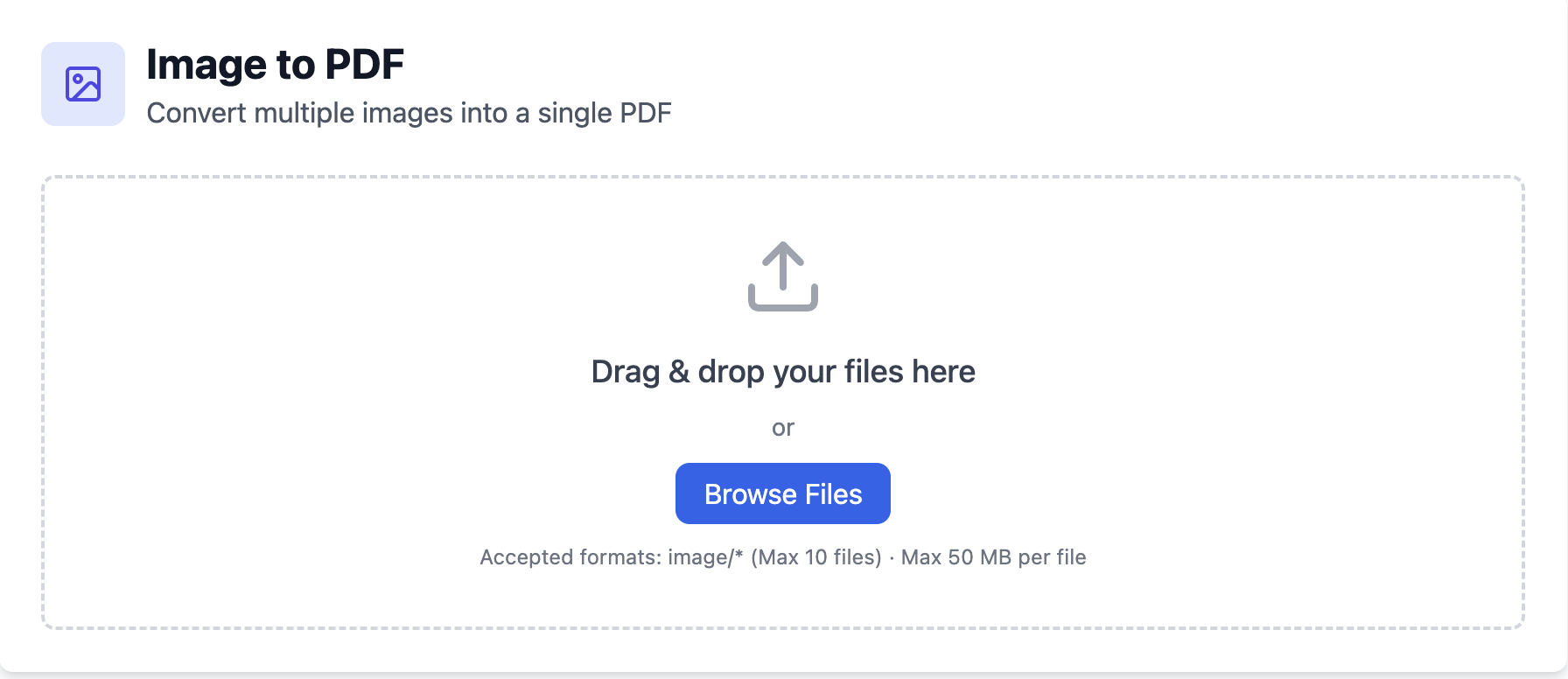
Upload your image
Drag in a JPG, PNG, WebP, or HEIC file — or select several at once using the browse button. The tool supports multiple formats out of the box.
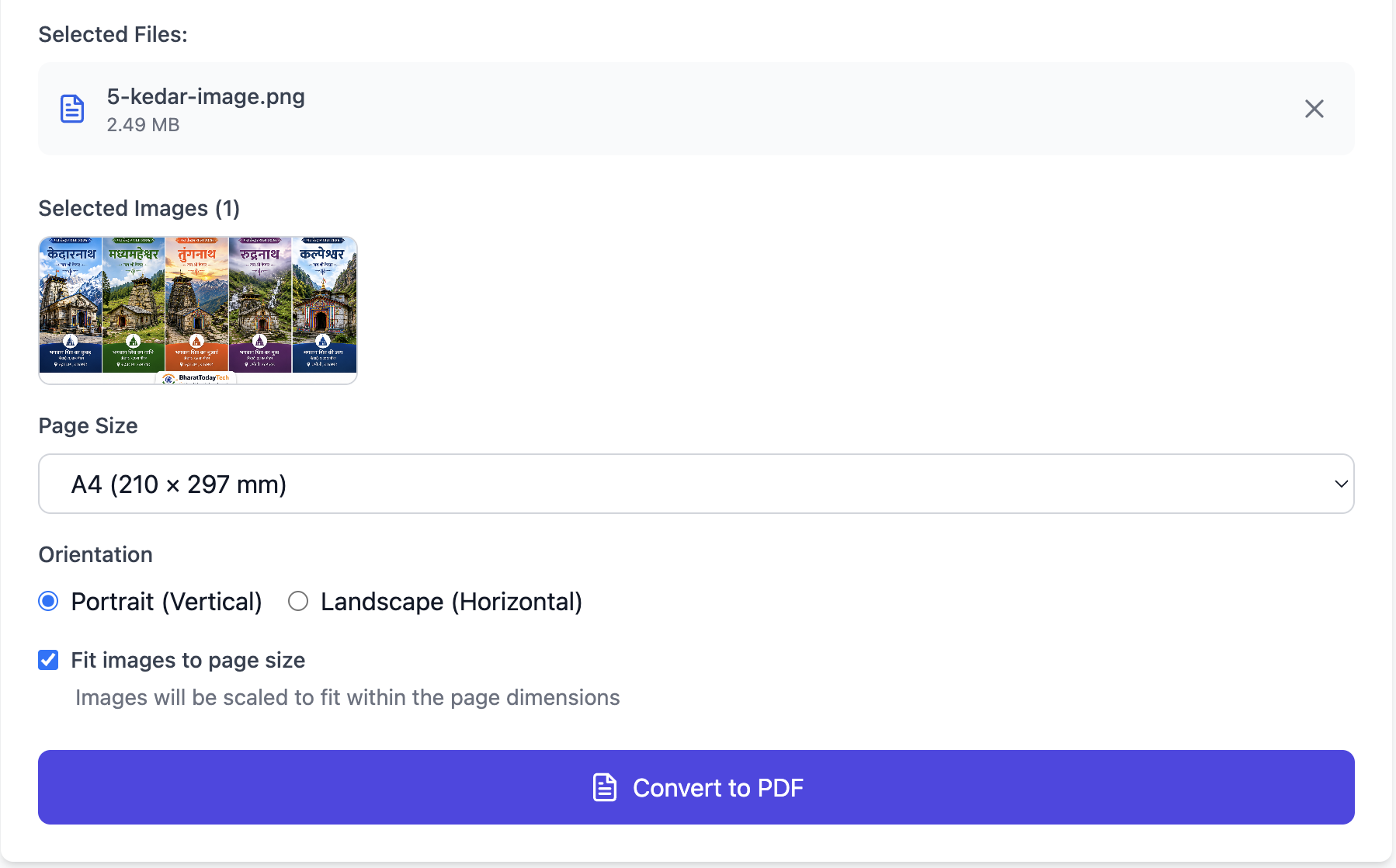
Set the page & reorder
Choose portrait or landscape, margins, and whether the image should fit the page or fill it edge to edge. Dragging the thumbnails lets you set exactly which image becomes page one, page two, and so on.
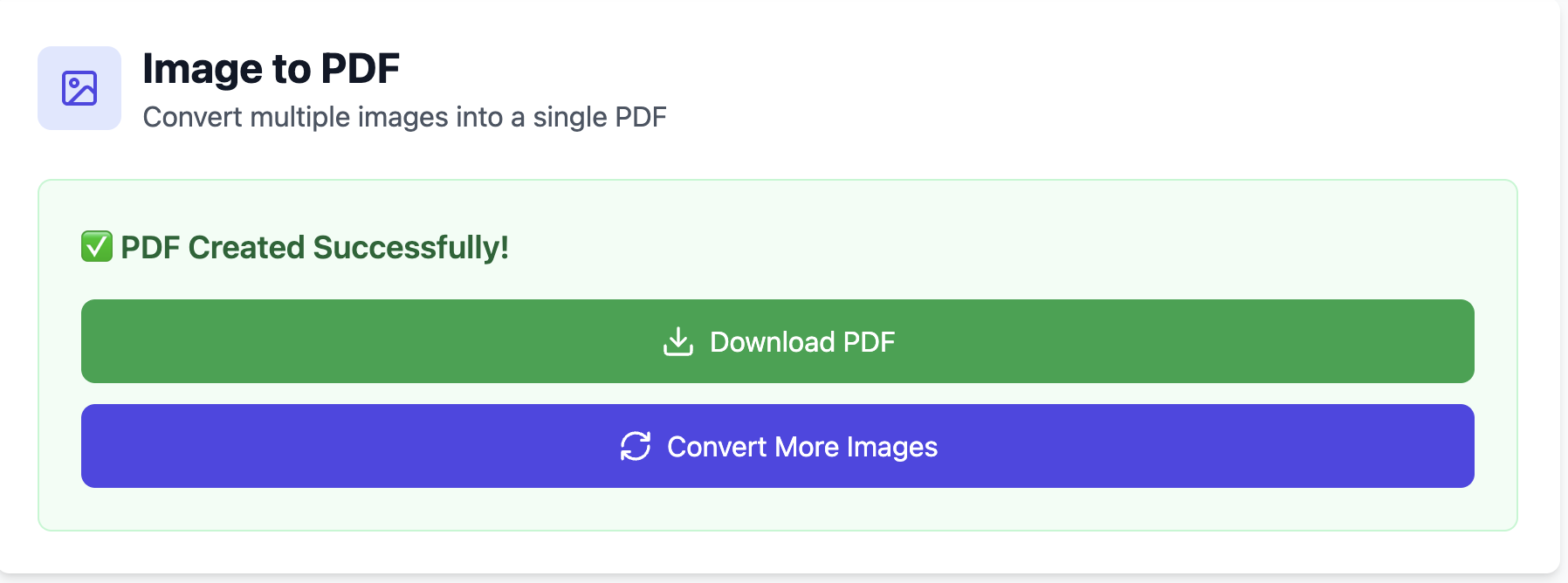
Convert & download
Click convert and save your PDF. That's it — your images are now successfully combined into a fixed, easily shareable document.
⚡ Quick Answer
To convert an image to PDF, upload your JPG, PNG, or photo, choose the page size and order, and click convert. You can combine several images into one PDF, and it's free with no signup and no watermark.
- Formats: JPG, PNG, WebP, BMP, GIF, and iPhone HEIC
- Combine: merge many images into a single multi-page PDF
- Quality: images are placed at original resolution
- Free: no signup, no watermark, works on any device
Why Convert an Image to PDF?
A JPG is a picture; a PDF is a document — and that difference matters more than people expect. Send a plain image and the recipient's phone might rotate it, compress it, or show a tiny thumbnail. Upload forms on government and banking portals usually demand a PDF because it prints cleanly on A4 and keeps exact dimensions.
- Consistency: the file looks identical on Windows, Mac, Android, and iOS.
- Acceptance: most upload forms expect .pdf, not .jpg.
- Organisation: multi-page receipts, ID proofs, or notes stay together in one file.
How to Combine Multiple Images into One PDF
This is where most people get stuck — you have several photos of a document and need them in one file, in the right order. Upload all the images together, then drag the thumbnails to arrange them: page one, page two, page three. Click convert once, and the tool stitches them into a single PDF. If you load them out of order, just rearrange — you don't have to start over.
If the combined PDF ends up heavy, run it through a PDF compressor afterwards so it slips under email or portal size limits. Need to add these pages to an existing document? You can merge PDF files in any order.
Convert a Photo to PDF on Mobile
No laptop nearby? You don't need one. Because the converter runs in your browser, it works the same on a phone.
- Open your mobile browser (Chrome, Safari, whatever you use) and go to this page.
- Tap upload and choose Take Photo or pick an image from your gallery.
- Convert and save the PDF to Files or Downloads.
It's the fastest way to turn a photo of a signed form or a receipt into a PDF while you're on the move.
Are My Files Safe?
Supported Image Formats
iPhone photos usually save as HEIC, which many older systems can't open. Converting straight to PDF sidesteps that problem. If you specifically need a JPG instead of a PDF, use our image to JPG converter.
| Format | Common source | Supported? |
|---|---|---|
| JPG / JPEG | Cameras, WhatsApp, downloads | ✅ Yes |
| PNG | Screenshots, logos, graphics | ✅ Yes |
| WebP | Web images | ✅ Yes |
| HEIC | iPhone photos | ✅ Yes |
| BMP / GIF | Older files, simple graphics | ✅ Yes |
Image to PDF vs Other Methods
| Method | Speed | Multiple images? | Cost |
|---|---|---|---|
| PDFCraftor (browser) | Seconds | Yes — into one PDF | Free, no signup |
| Print → Save as PDF | Slow, fiddly | One at a time | Free |
| Desktop software (Adobe) | Fast | Yes | Paid subscription |
| Emailing the raw image | Instant | No — stays an image | Free, but often rejected |
Pro Tips & Common Problems
| Issue | Fix |
|---|---|
| PDF looks blurry | Blur comes from the photo, not the conversion. Retake in good light with the full page in frame. |
| File too big to upload | Convert first, then compress the PDF — often 8 MB drops under 1 MB. |
| Image is sideways | Set page orientation before converting, or rotate the PDF after. |
| Won't accept my PNG / HEIC | This tool supports all common formats — no need to convert first. |
Common Use Cases
- 📌Job & college applications: submit certificates and ID as a clean PDF, not a loose photo.
- 📌Expense claims: combine a month of receipt photos into one PDF for accounts.
- 📌Government portals: upload documents that only accept .pdf.
- 📌Notes & whiteboards: turn photos of handwritten notes into a shareable file.
Related Tools
- 🔧Merge PDF — combine your new PDF with other documents
- 🔧Compress PDF — shrink the file for email or upload
- 🔧Convert Image to JPG — when you need an image, not a PDF
- 🔧PDF to Word — make a scanned PDF editable with OCR