How To Add Pages to a PDF & Combine PDFs Online
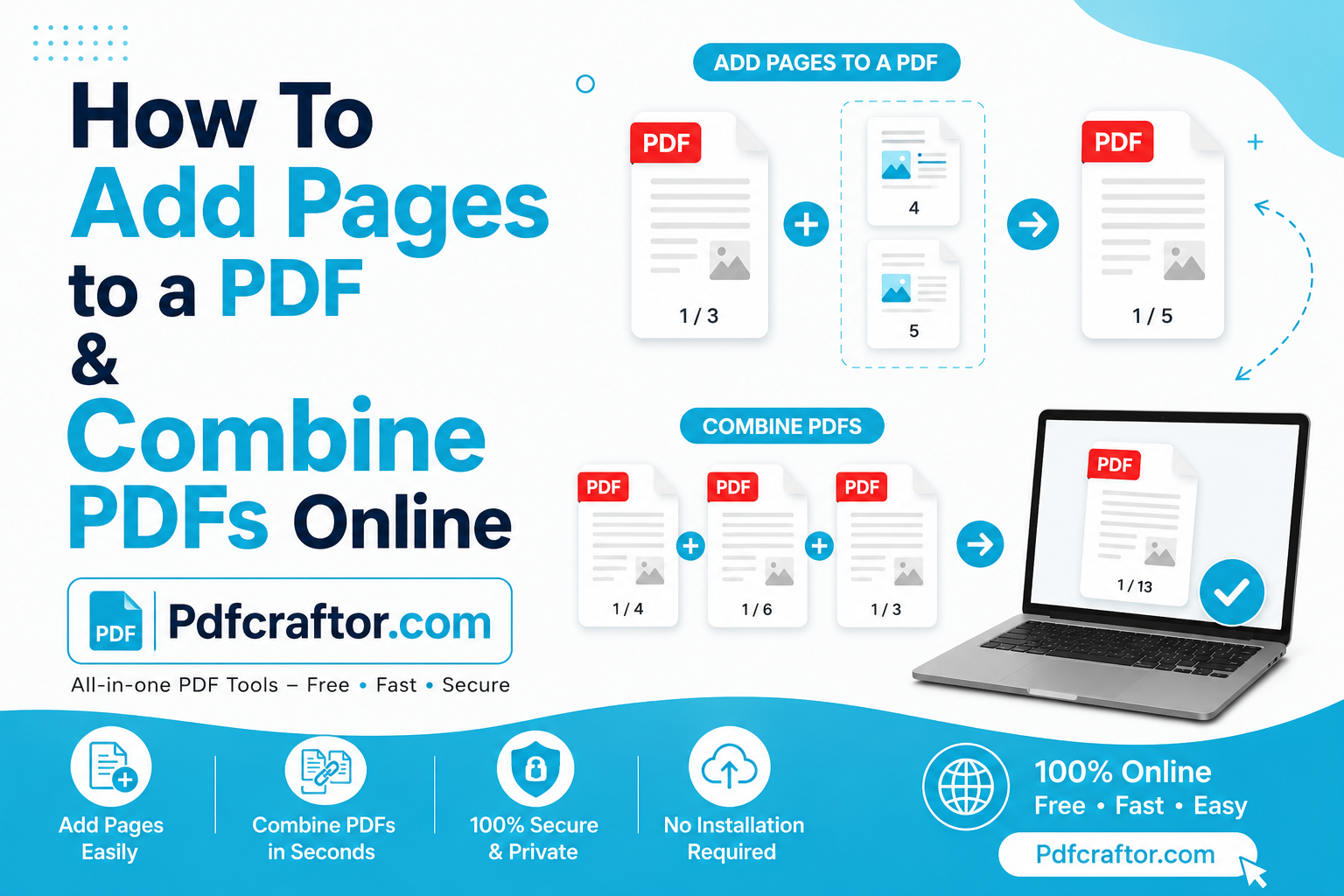
PDF files are easy to share, but they can feel difficult to change when one page is missing or several files need to become one document. You may need to add a signed page to a contract, attach receipts to an invoice, insert a cover page, or pdf merge free software combine several reports before sending them.
The good news is that you do not need complicated desktop software for most of these tasks. With an online PDF tool like PDFCraftor, you can add pages, arrange them, merge multiple PDFs, and download one clean file.
If you are searching for pdf merge free software or a simple way to split and combine pdf files, this guide explains the easiest workflow.
When Do You Need To Add Pages to a PDF?
You may need to add pages when a document is incomplete or when related files must be sent together.
Common PDF Page Tasks
| Task | Example |
|---|---|
| Add one page | Add a signature page to a contract |
| Add a cover page | Place a title page before a report |
| Combine files | Merge invoices into one monthly PDF |
| Insert appendix | Add supporting pages to a proposal |
| Organize scans | Combine scanned pages into one file |
| Remove extra pages | Delete blank or duplicate pages |
How To Add Pages to a PDF Online
Step 1: Open a PDF merge tool
Use an online merge tool such as PDFCraftor Merge PDF:
Step 2: Upload your main PDF
This is the document that needs extra pages.
Step 3: Upload the PDF or page you want to add
You can upload another PDF, scanned page, or file that should become part of the final document.
Step 4: Arrange the page order
Place the new page before, after, or between existing pages.
Step 5: Remove pages you do not need
Delete blank, duplicate, or unrelated pages before finalizing.
Step 6: Merge and download
Create the final PDF and save it to your device.
How To Combine Multiple PDFs Into One File
Combining PDFs is one of the most common document tasks. Instead of sending several attachments, you can create one organized PDF that is easier to review, print, upload, or archive.
Upload each PDF, drag the files into the correct order, and merge them. The final PDF will contain all selected pages in the order you choose.
Split and Combine PDF Workflow
Sometimes you do not want to merge full documents. You only need selected pages from each file. In that case, use Split PDF first and Merge PDF second.
Step 1: Split the original PDFs
Extract only the pages you need.
Step 2: Save the selected pages
Keep each useful section as a smaller PDF.
Step 3: Merge the selected files
Combine the cleaned sections into one final document.
Split First or Merge First?
| Situation | Best Action |
|---|---|
| You need all pages from all files | Merge first |
| You need only selected pages | Split first |
| File has blank pages | Delete or split first |
| Final file is too large | Merge, then compress |
| Pages are in wrong order | Reorder before downloading |
What Can You Add to a PDF?
You can add pages from another PDF, blank pages, scanned pages, converted image pages, forms, receipts, certificates, cover pages, title pages, or appendix pages.
Tips for a Clean Combined PDF
| Tip | Benefit |
|---|---|
| Rename files before uploading | Keeps order clear |
| Preview page order | Prevents mistakes |
| Remove blank pages | Makes the file professional |
| Compress large final PDFs | Makes sharing easier |
| Keep original files | Gives you a backup |
Real-Life Examples of Adding Pages to PDFs
Many PDF tasks are small but important. A job applicant may need to add a cover letter before a resume. A business owner may need to attach receipts after an invoice. A student may need to combine assignment pages into one file before uploading them to a school portal.
Legal, finance, and office teams often combine signed documents with supporting pages. Instead of sending separate files, they create one organized PDF. This makes the document easier to review and reduces the chance that an attachment is missed.
If you work with scanned pages, combining them is especially useful. You can scan each page separately, then merge the pages into one complete PDF.
How To Keep Page Order Correct
Page order is the most common mistake when combining PDFs. Before uploading, rename files with numbers. For example, use names like 01-cover, 02-contract, 03-signature, and 04-appendix. This helps you understand the correct order even before you open the merge tool.
After uploading, always preview the page thumbnails. Check the first page, last page, signature pages, and any appendix pages. If the tool allows drag and drop, move pages into the right order before downloading.
For long documents, split and combine pdf workflows are very helpful. First extract the pages you need. Then merge only those clean sections. This prevents extra pages from slipping into the final file.
Add Pages Without Making the File Too Large
When you add scanned pages or image-heavy PDFs, the final file size can grow quickly. A large file may be difficult to email or upload to a website. If the final PDF is too large, compress it after merging.
You can also reduce file size before merging by removing duplicate pages, blank pages, and unnecessary image files. If you only need one page from a large document, split it first instead of adding the full file.
Online Merge Tool vs PDF Merge Free Software
| Option | Best For | Limitation |
|---|---|---|
| Online merge tool | Quick everyday PDF combining | Needs internet access |
| Desktop software | Advanced or repeated office workflows | Requires installation |
| Manual print and scan | Rare emergency use | Slow and reduces quality |
| Split and merge workflow | Selected pages from multiple files | Requires page review |
For most users, an online merge tool is enough. It is faster than installing pdf merge free software and easier than printing documents manually.
FAQ
Can I add one page to an existing PDF?
Yes. Upload the main PDF and the page you want to add, then place it in the correct position before merging.
Can I combine PDF files for free?
Yes. Online PDF merge tools let you combine multiple PDFs into one file without installing desktop software.
What if I only need a few pages from a PDF?
Use a split PDF tool first to extract the pages you need, then merge those selected pages into a new document.
Will combining PDFs reduce quality?
Merging usually keeps the original page quality. Compression may reduce image quality depending on the settings.
Conclusion
Adding pages and combining PDFs online is simple when you use the right workflow. Merge complete documents when you need everything in one file. Split first when you only need selected pages. PDFCraftor helps users manage both workflows with easy online PDF tools.
Share this article
Sharad Mishra
Content Writer
Published on May 17, 2026
Related Articles
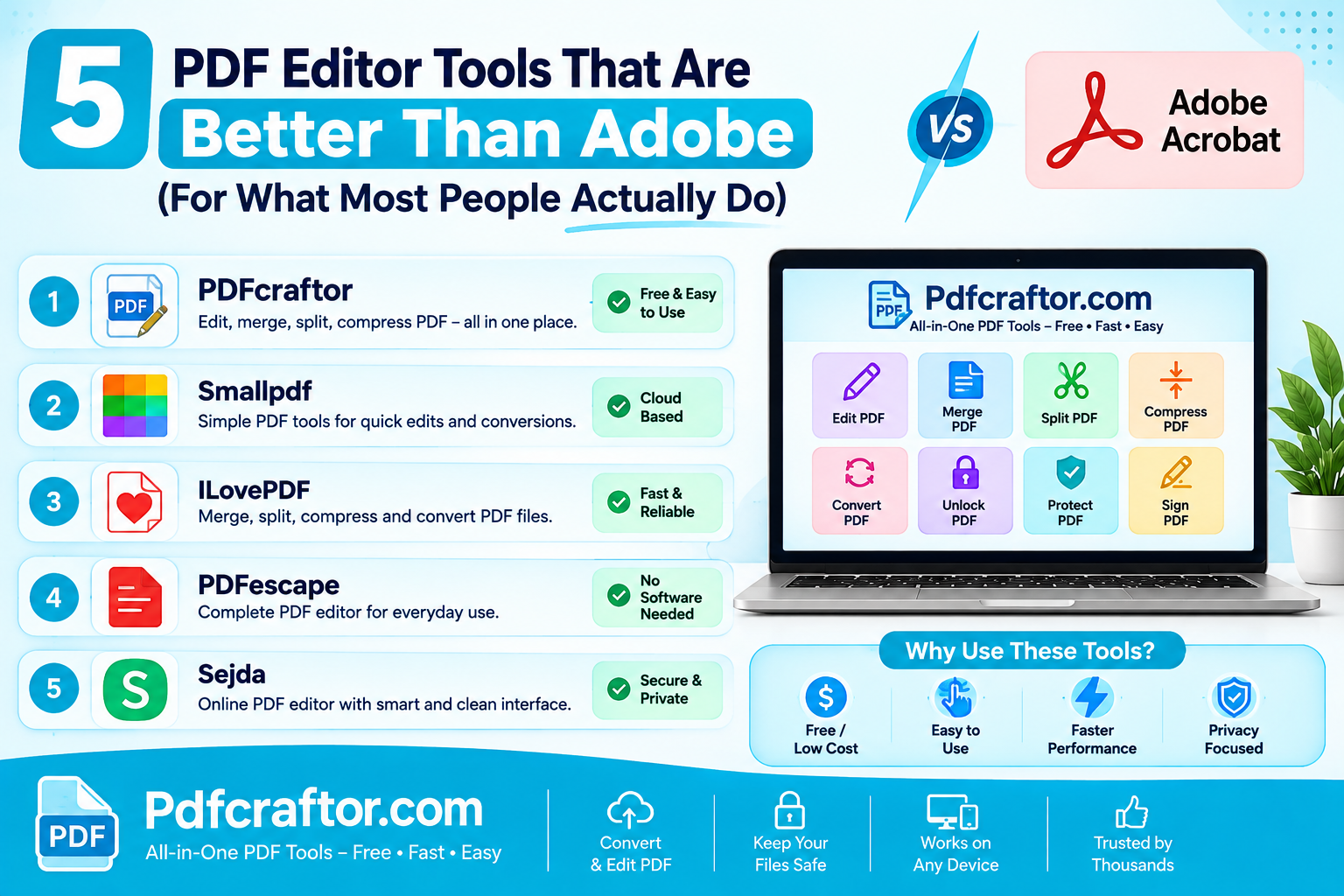
5 PDF Editor Tools That Are Better Than Adobe (For What Most People Actually Do)
Adobe Acrobat Pro costs around $240 a year. These 5 free PDF editor tools merge, split, compress and edit PDFs without the price, the account, or the bloat.
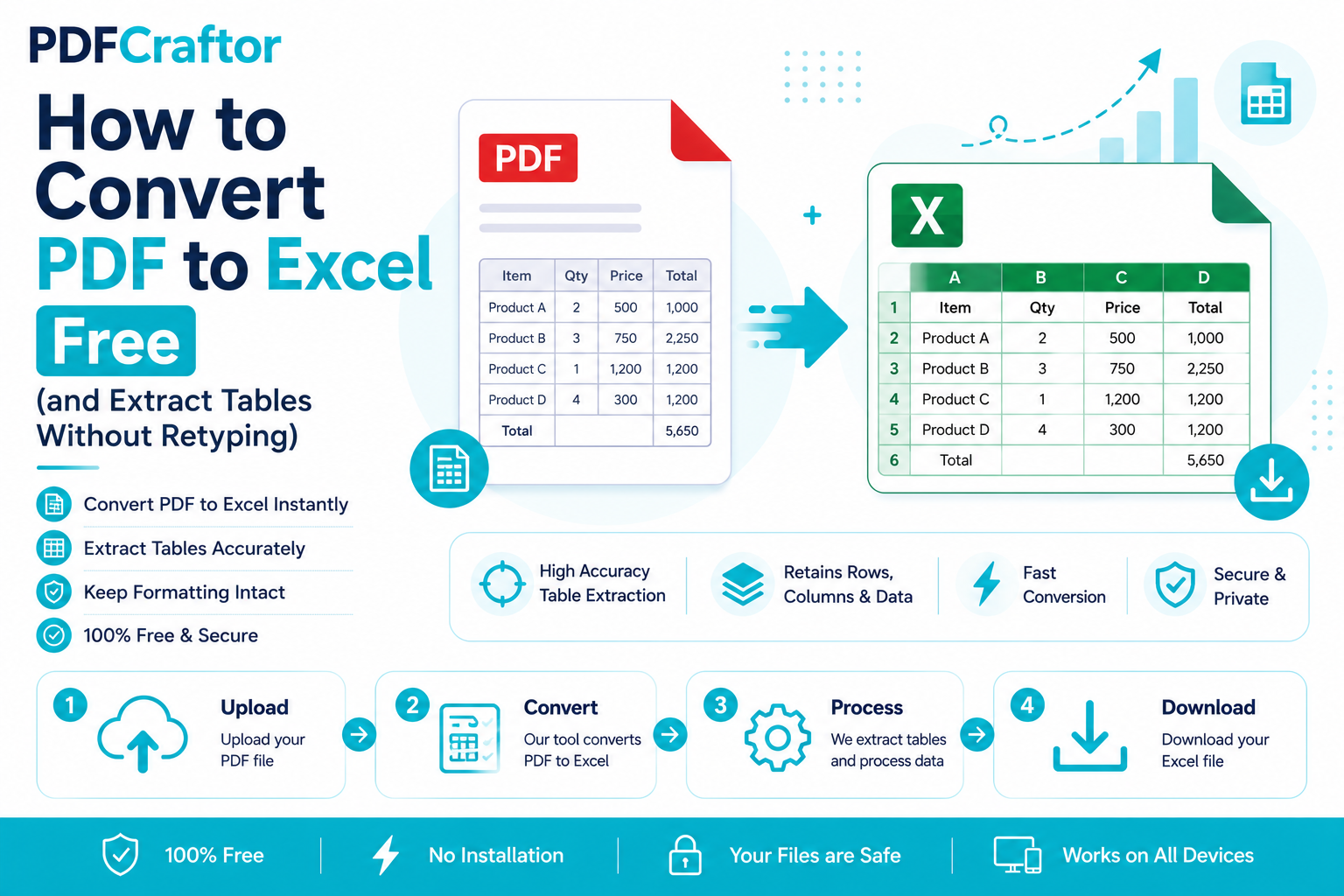
How to Convert PDF to Excel Free (and Extract Tables Without Retyping)
Learn how to convert PDF to Excel free and extract tables into editable spreadsheets, no manual retyping, no software. Works for bank statements and reports.
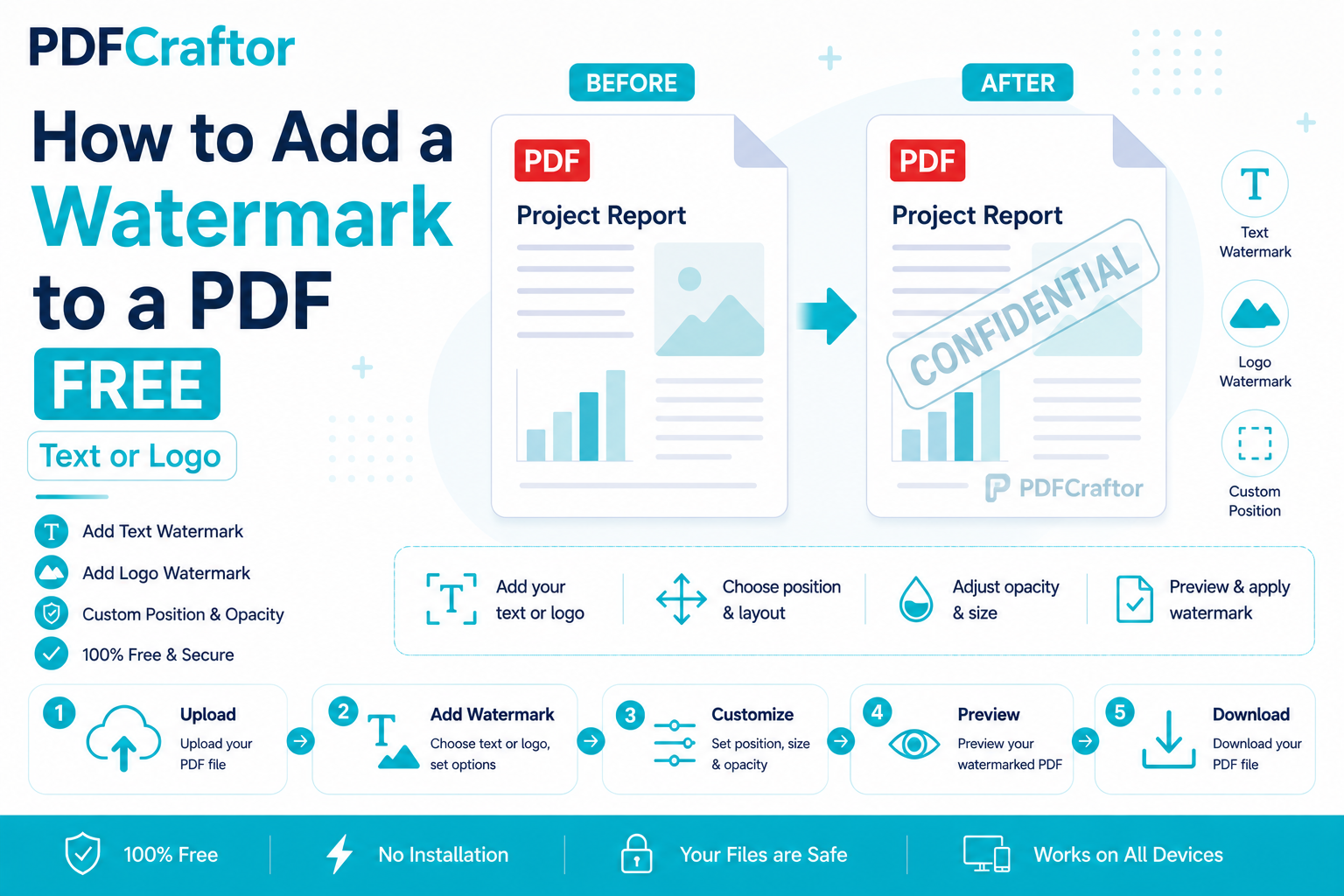
How to Add a Watermark to a PDF Free (Text or Logo)
Learn how to add a watermark to a PDF free stamp text like "Confidential" or your logo across pages, set opacity and position, online with no software.