5 PDF Editor Tools That Are Better Than Adobe (For What Most People Actually Do)
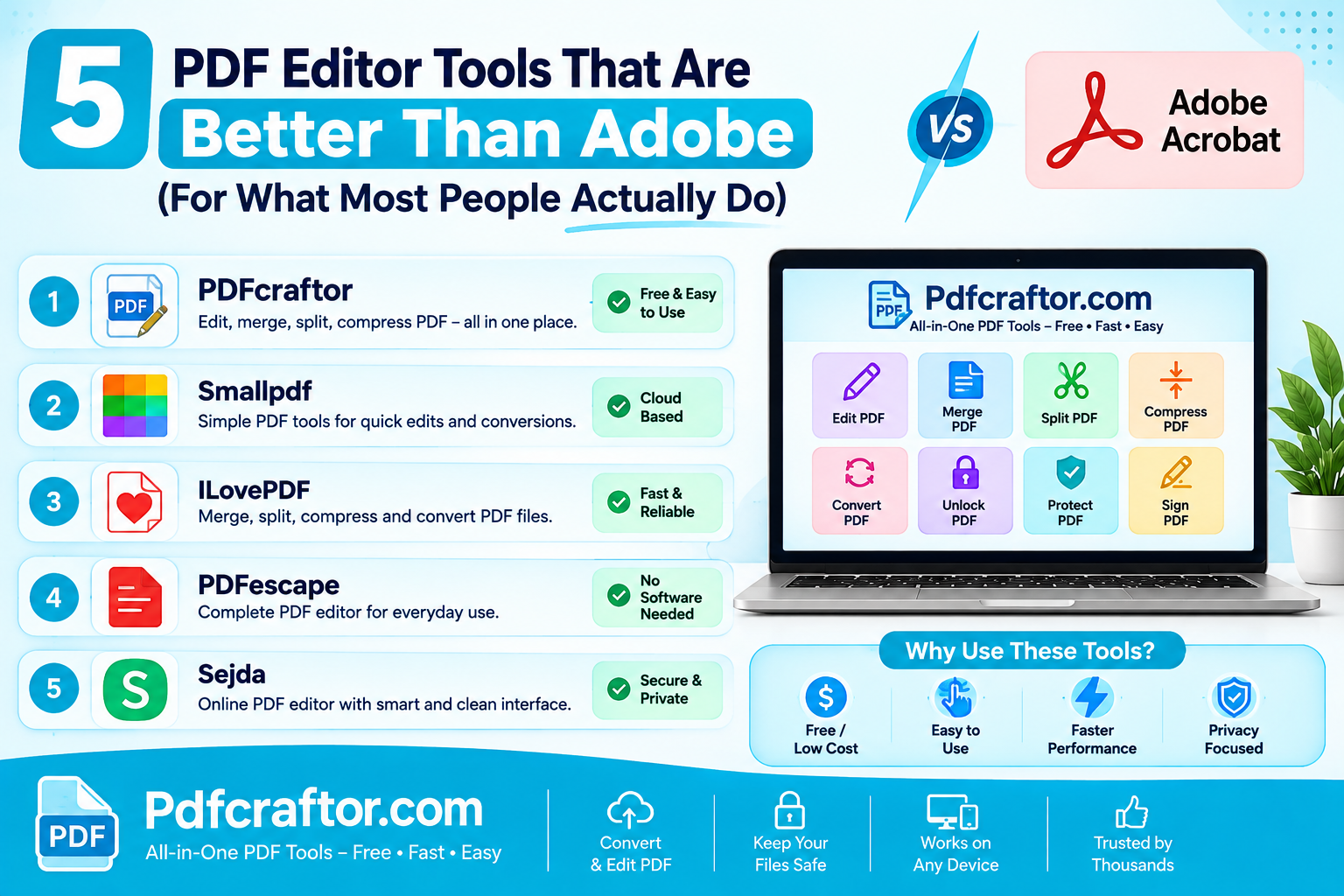
For everyday PDF work, merging, splitting, compressing, converting, and light editing, you don't need Adobe Acrobat Pro's roughly $240-a-year subscription. Free tools cover it: PDFCraftor (browser-based, no signup, no watermark), Sejda (in-browser text editing), PDFgear (free desktop editor), LibreOffice Draw (offline editing), and iLovePDF (broad online toolkit). Adobe still wins for heavy OCR, redaction and legal workflows, but that's a minority of users paying for a majority of features they never touch.
- Everyday tasks: a free browser tool does the job in seconds
- Occasional text edits: Sejda or PDFgear handle it without a subscription
- Heavy professional use: Acrobat earns its price, for that 10% of users
Somewhere along the way, "I need to combine two PDFs" started costing $19.99 a month.
That's the annual-plan price of Adobe Acrobat Pro, about $240 a year, and the month-to-month option runs $29.99. For professionals living in PDFs all day, fair enough. But most people merge a few files, split out some pages, compress something for email, and occasionally fix a typo. Paying Acrobat prices for that is like buying a truck to carry groceries. Here are five tools that do the everyday work better: faster to open, free to use, and none of them asks for your card number first.
Why Do People Look for Adobe Acrobat Alternatives?
Three complaints come up again and again, including all over Adobe's own community forums:
- The price. Acrobat Standard runs about $14.99 a month billed annually, Pro about $19.99. In India, Acrobat Pro currently lists around ₹944 a month on the annual plan (check Adobe's India pricing page for the live figure). Every year, forever, for software many people open twice a month.
- The cancellation trap. Adobe's popular "annual plan, billed monthly" charges an early termination fee, roughly half the remaining year, if you cancel after the first 14 days. Users regularly report surprise charges of a hundred dollars or more just to leave. [VERIFY current fee terms on Adobe's cancellation policy page before publishing]
- The weight. Acrobat is a large install with an account requirement, cloud prompts, and an interface built for power users. Opening it to delete one page feels like starting a plane to cross the street.
And here's the thing people discover late: the free Adobe Reader only views, prints, comments and fills forms. Editing text, converting, merging and splitting all sit behind the paywall. So "I have Adobe" usually means "I have the viewer".
Which 5 PDF Editors Beat Adobe for Everyday Work?
1. PDFCraftor: best for fast, free, no-signup tasks
The 90% use case, merge, split, compress, convert, rotate, watermark, protect, runs entirely in your browser here, free, with no account and no watermark stamped on your files. Need to merge PDF files before a submission? Two clicks. Need to split PDF pages to send only pages 4 to 7? Same. There's a full PDF editor for annotations and quick changes, a PDF compressor for email-size files, and converters including PDF to Word. Because it's browser-based, it works the same on a phone, an office PC where you can't install software, or a borrowed laptop.
Honest limits: it's an online toolkit, so for deep text re-editing of a 300-page contract you'd want a desktop editor from further down this list.
2. Sejda: best for editing text in the browser
Sejda's standout trick is genuine in-browser text editing, click a paragraph in the PDF and retype it, with no watermark on output. For fixing a date on a form or correcting a name, it's the quickest no-install option. The free tier caps you at 3 tasks per hour and files up to 50 MB or 200 pages, which is fine for occasional fixes and deliberately annoying for daily work.
Honest limits: those hourly caps arrive fast the day you have five documents to fix.
3. PDFgear: best free desktop editor
A genuinely free desktop app for Windows and Mac with no watermarks and no task limits: full text editing, page organisation, conversion, even an AI assistant for summarising documents. It's the closest free thing to Acrobat's desktop experience, and how it stays free long-term is anyone's guess, so enjoy it while it lasts.
Honest limits: requires installation, so it's out on locked-down office machines, and its OCR is weaker than Acrobat's.
4. LibreOffice Draw: best offline and open-source option
The open-source office suite opens PDFs directly in Draw, where every text block and image becomes editable. Completely free, works offline, no accounts, no telemetry, no file ever leaves your computer, which matters for confidential documents. Millions of users, two decades of development, zero rupees.
Honest limits: complex layouts can reflow oddly on import, and the interface feels like office software from 2010, because it is. Best for simple documents you need to edit privately.
5. iLovePDF: best-known online toolkit
The most popular name in online PDF tools, with a clean interface covering merge, split, compress, convert and sign, plus decent mobile apps. It's a solid product with one catch: the free tier limits file sizes (around 25 MB), batches, and tasks per hour, and some outputs carry watermarks until you subscribe to Premium.
Honest limits: the free tier is a demo of the paid tier. Fine for light use; the walls appear exactly when you're busiest.
How Do the Free Tiers Actually Compare?
This is the table the vendor listicles never print. "Free" means very different things:
| Tool | Really free? | Signup needed? | Watermarks? | Main limit |
|---|---|---|---|---|
| PDFCraftor | Yes | No | No | Online only |
| Sejda | Free tier | No | No | 3 tasks/hour, 50 MB |
| PDFgear | Yes | No | No | Desktop install required |
| LibreOffice Draw | Yes | No | No | Layout reflow on complex PDFs |
| iLovePDF | Free tier | For some features | On some outputs | ~25 MB files, task caps |
| Adobe Acrobat Pro | No (~$240/yr) | Yes | No | Price, cancellation fee |
If you're exploring the wider world of free options beyond these five, our roundup of the best free PDF tools online in 2026 goes tool-by-tool through every task category.
When Should You Still Pay for Adobe Acrobat?
Fair is fair. Acrobat remains the best choice for a specific kind of user: legal and compliance teams doing certified redaction, businesses running high-volume OCR on scanned archives, anyone needing advanced form creation, digital signature workflows with audit trails, or preflight tools for print production. If that's your daily work, $240 a year is cheap.
But be honest about which user you are. If your last five PDF tasks were merge, compress, convert, split and "fix one line", you're subsidising features you'll never open. Try the free route for a month; the subscription will still be there if you genuinely miss it. Adobe will make sure of that.
FAQ
What is the best free alternative to Adobe Acrobat?
For everyday tasks like merging, splitting, compressing and converting, a browser toolkit like PDFCraftor covers everything free with no signup or watermark. For desktop text editing, PDFgear is the strongest free option.
How can I edit a PDF for free without Adobe Acrobat?
Use an online editor for annotations and quick changes, Sejda for retyping text in the browser, or LibreOffice Draw and PDFgear for full offline editing. All are free; none needs an Adobe account.
Can I merge and split PDFs without paying for Acrobat?
Yes. Free online tools merge and split PDFs in seconds; the free Adobe Reader can't do either. Upload your files, choose the pages, download the result, no subscription involved.
Why is Adobe Acrobat so expensive?
Acrobat Pro is priced for professional workflows, around $19.99 a month billed annually, covering OCR, redaction, e-signatures and enterprise features. Casual users pay the same rate while using a fraction of those tools, which is why free alternatives exist.
Is there a free PDF editor with no watermark?
Yes, several. PDFCraftor, Sejda, PDFgear and LibreOffice Draw all produce output without watermarks on their free tiers. Some other popular tools add watermarks until you pay, so check before uploading.
What can the free Adobe Acrobat Reader actually do?
View, print, comment, highlight, and fill and sign basic forms. It cannot edit text, merge, split, compress meaningfully, or convert PDFs to other formats; those features require a paid Acrobat plan.
Conclusion
"Better than Adobe" doesn't mean better at everything; it means better at what most people actually do, which is quick, occasional PDF work that shouldn't cost $240 a year or demand an account. Keep a browser toolkit as your daily driver for merging, splitting and compressing, add PDFgear or LibreOffice Draw for the rare deep edit, and let Sejda handle the odd in-browser text fix. That free stack covers the everyday completely, with Acrobat left for the professionals who truly need it. Next time a PDF needs work, skip the subscription page and open the free online PDF tools instead, your card can sit this one out.
Share this article
Sharad Mishra
Content Writer
Published on August 15, 2026
Related Articles
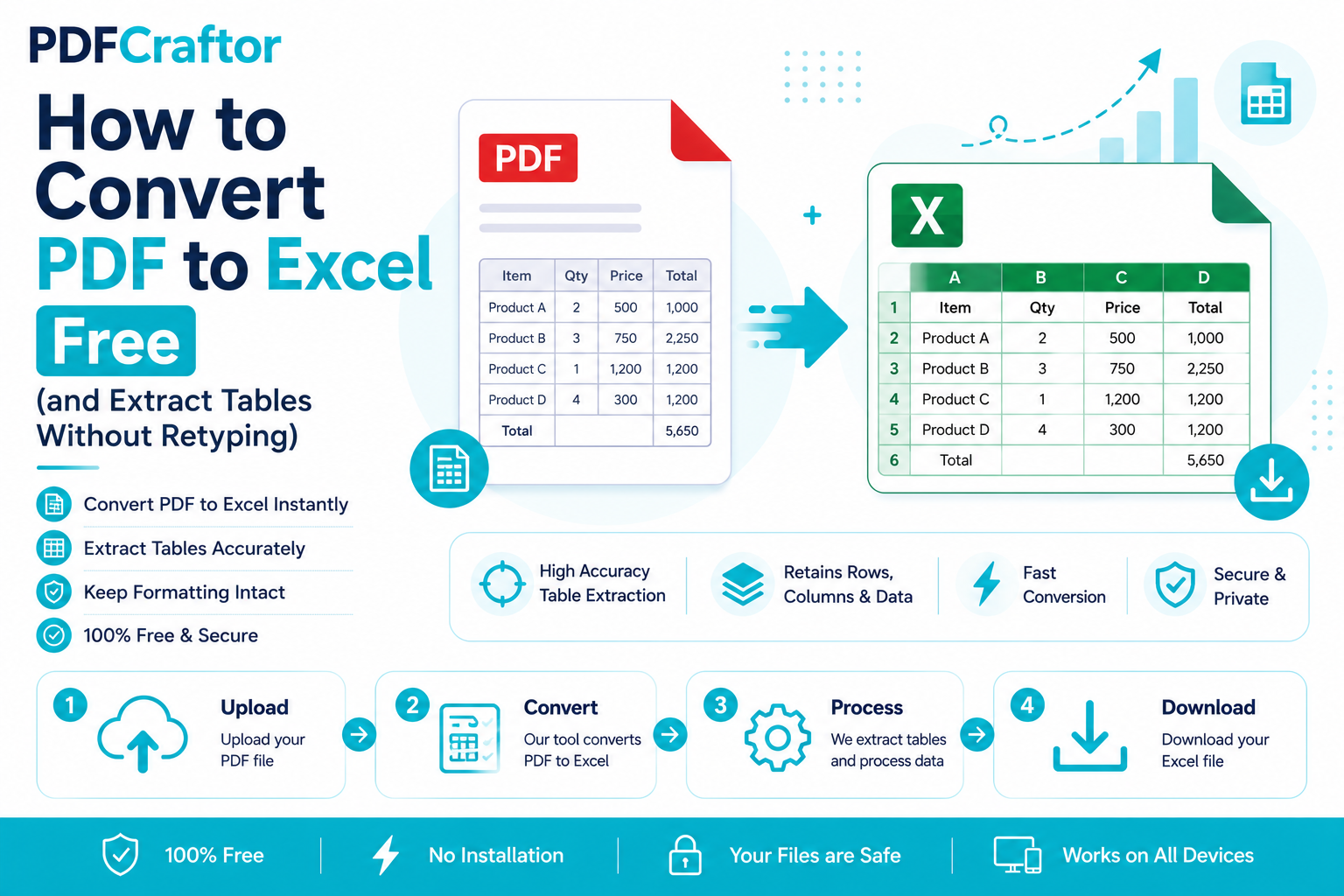
How to Convert PDF to Excel Free (and Extract Tables Without Retyping)
Learn how to convert PDF to Excel free and extract tables into editable spreadsheets, no manual retyping, no software. Works for bank statements and reports.
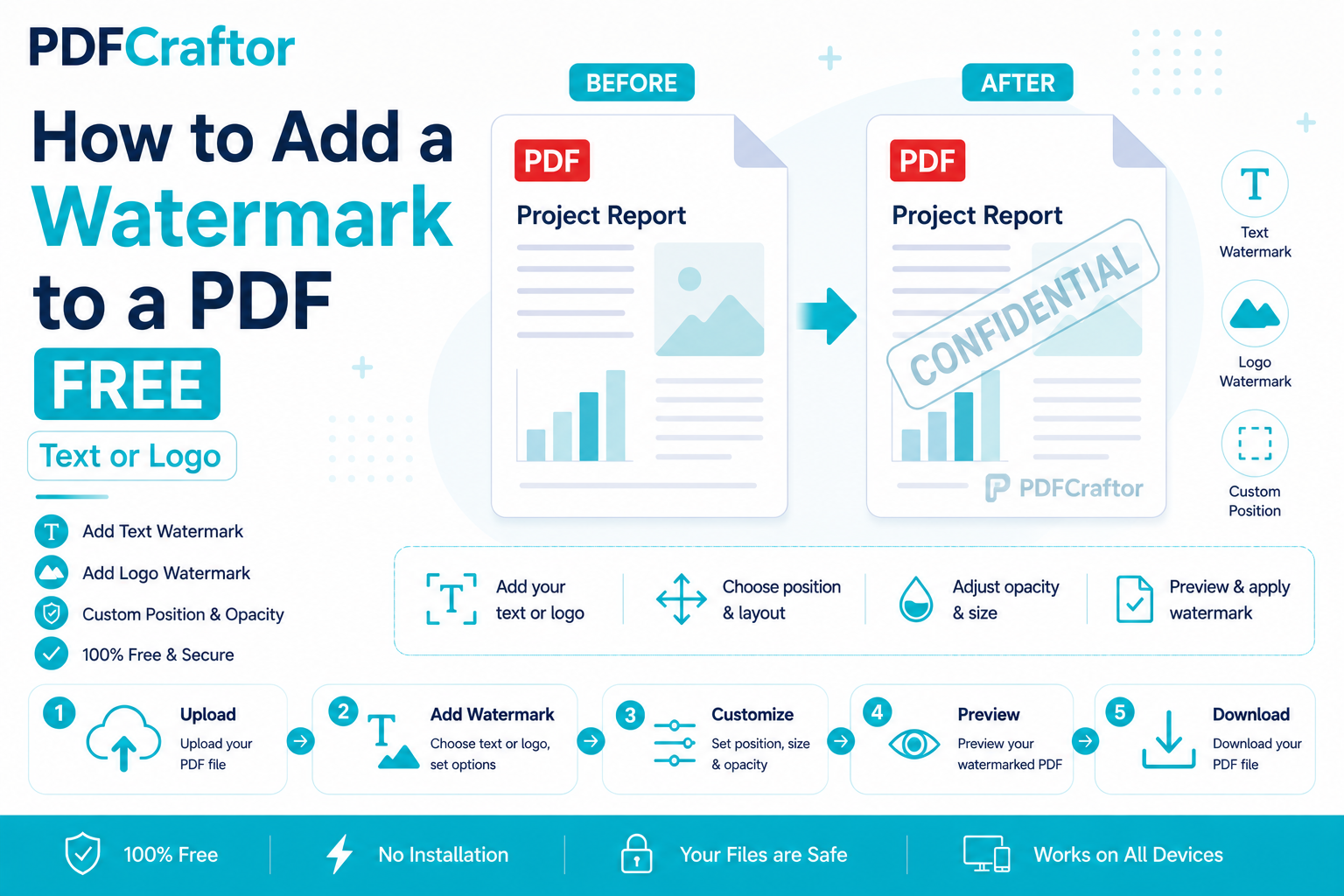
How to Add a Watermark to a PDF Free (Text or Logo)
Learn how to add a watermark to a PDF free stamp text like "Confidential" or your logo across pages, set opacity and position, online with no software.
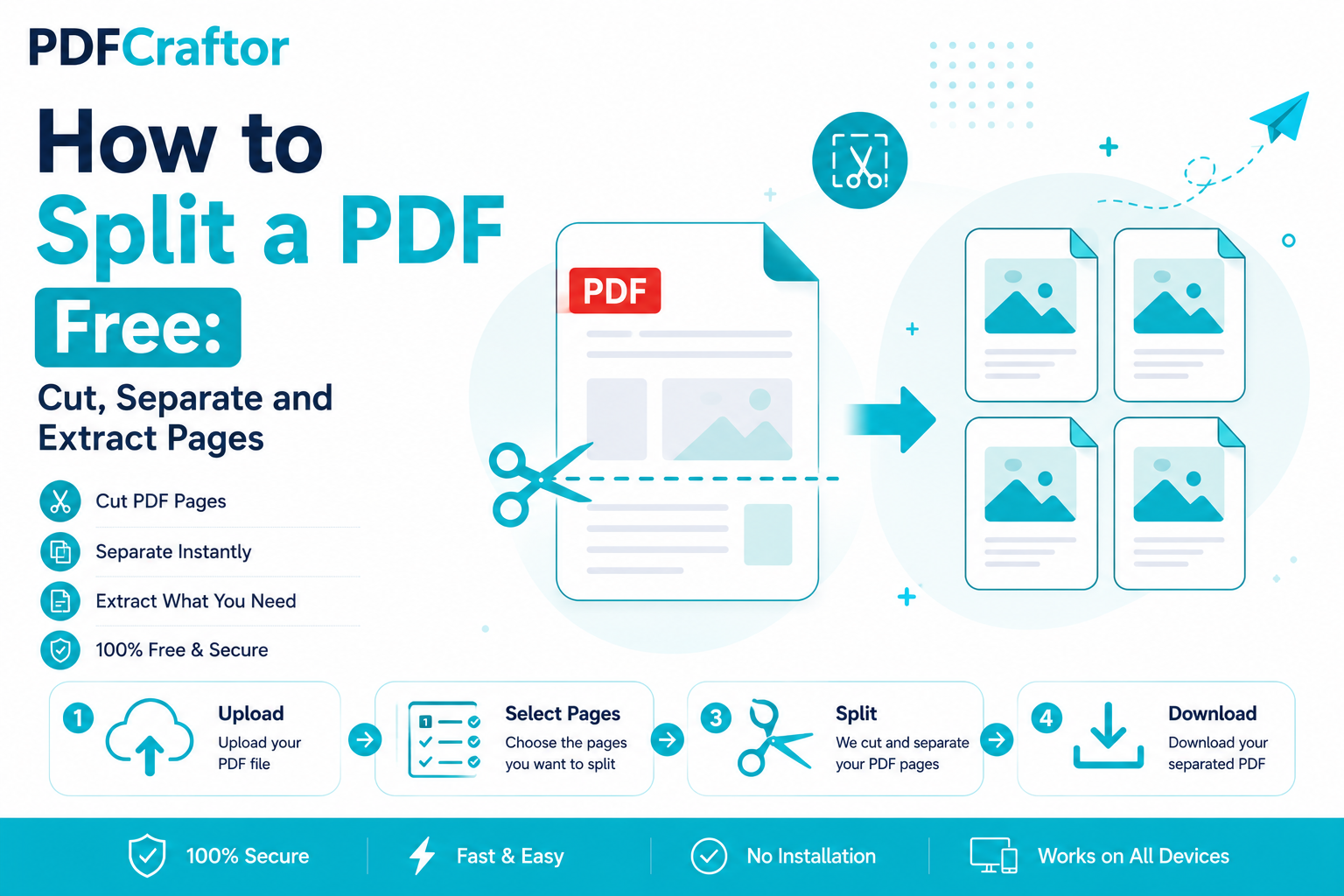
How to Split a PDF Free: Cut, Separate and Extract Pages
Learn how to split a PDF for free, cut out pages, separate a big PDF into parts, or extract a single page online without software. Step-by-step, no watermark.