How To Convert a Scanned PDF to Word Online
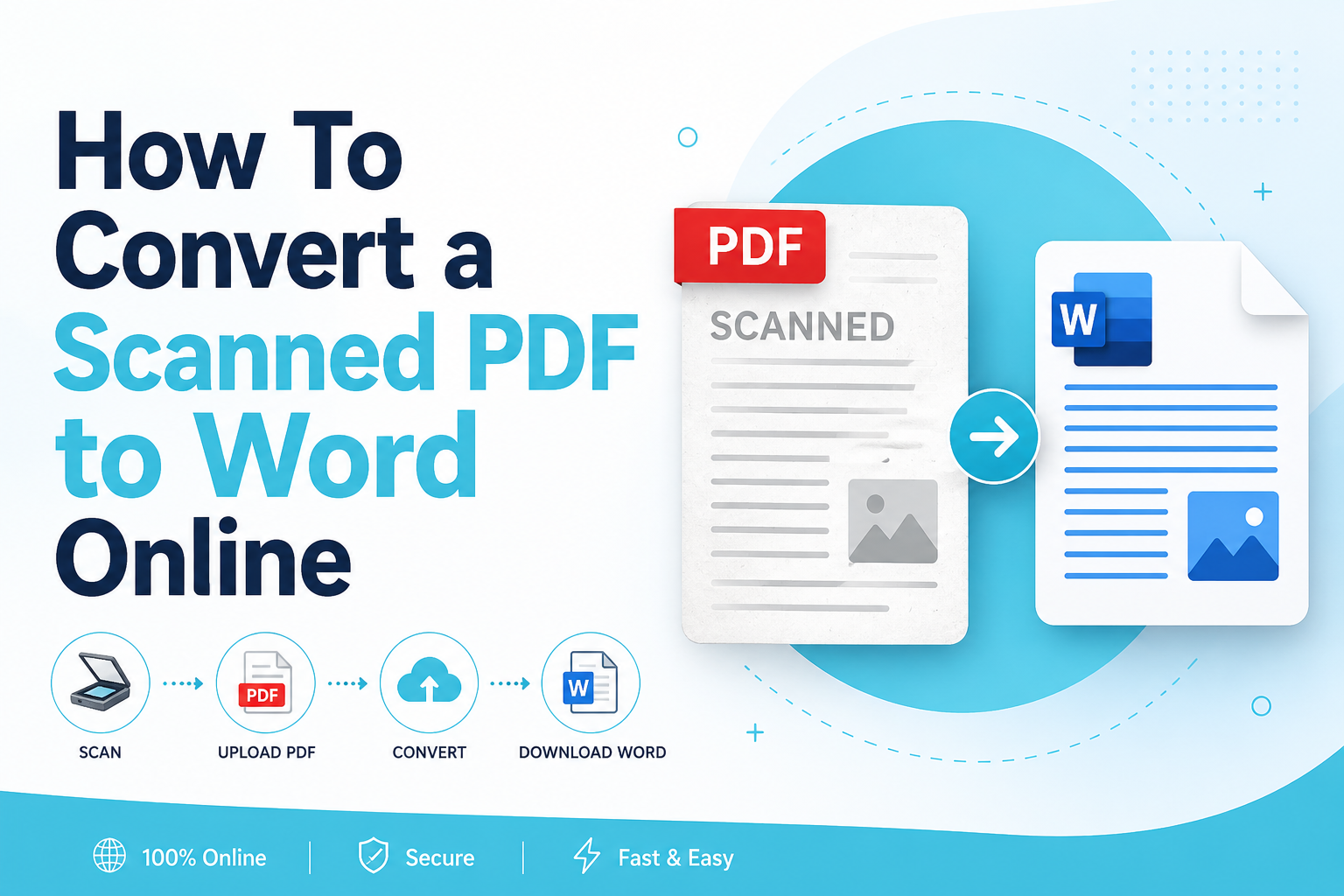
A scanned PDF looks like a normal PDF, but it often works differently. If a document was scanned from paper, each page may be saved as an image. That means you cannot click into the text, copy a sentence, or edit paragraphs in Word.
To convert a scanned PDF to Word online, you need OCR. OCR stands for Optical Character Recognition. It reads the text inside scanned images and turns it into editable content. Once OCR is complete, the file can be exported as a Word document.
If you use pdf craft online tools like PDFCraftor often, understanding this difference will help you avoid messy conversions and save time.
What Is a Scanned PDF?
A scanned PDF is created from a physical document using a scanner, printer, or mobile scanning app. It may contain invoices, contracts, forms, handwritten notes, certificates, receipts, old records, or printed reports.
The key point is simple: a scanned PDF may contain images of text, not real editable text.
Scanned PDF vs Regular PDF
| Feature | Scanned PDF | Regular PDF |
|---|---|---|
| Text selection | Often not possible | Usually possible |
| Editing | Needs OCR first | Easier to edit |
| File source | Scanner or camera | Digital document export |
| Conversion to Word | Requires text recognition | Usually converts faster |
| Best preparation | Clean scan and split pages | Check layout and fonts |
Why OCR Is Needed Before Word Conversion
Without OCR, a converter may place each scanned page into Word as a large image. You can view the page, but you cannot edit the words. OCR solves this by recognizing letters, numbers, and symbols from the scanned image.
OCR works best when the scan is clear, straight, and high resolution. It may struggle with blurry pages, shadows, handwriting, stamps, unusual fonts, and low contrast.
How To Convert a Scanned PDF to Word Online
Step 1: Open an OCR-supported PDF to Word tool
Choose an online converter that supports scanned PDFs. A normal PDF to Word converter may not be enough if the file is image-based.
Step 2: Upload your scanned PDF
Select the scanned PDF from your device. If the file is too large, compress it or split it before uploading.
Step 3: Enable OCR
Some tools run OCR automatically. Others ask you to choose the document language before recognizing text.
Step 4: Choose Word as the output format
Select DOC or DOCX as the final file type.
Step 5: Download and review the Word file
Open the converted file and check text, headings, spacing, tables, and numbers.
Prepare Your PDF Before Conversion
Before converting, remove pages you do not need. If the PDF contains blank pages, duplicate scans, or unrelated sections, the final Word file can become harder to edit.
If you only need a few pages, use PDFCraftor to split pdf document pages first: After splitting, convert only the section you actually need.
Common Problems and Fixes
| Problem | Reason | Fix |
|---|---|---|
| Word file is not editable | OCR was not applied | Convert again with OCR |
| Text has mistakes | Scan quality is low | Proofread and correct manually |
| Layout changed | PDF and Word use different layout systems | Adjust formatting after conversion |
| File upload is slow | Scanned PDF is too large | Compress or split the PDF |
| Tables look broken | OCR cannot rebuild complex tables perfectly | Reformat tables in Word |
When Should You Convert a Scanned PDF to Word?
Convert a scanned PDF to Word when you need to update old documents, reuse text from paper records, correct scanned forms, translate a document, extract text for reports, or make a scanned contract easier to review.
If you only need to add a note, draw a mark, or sign a page, you may not need Word conversion. In that case, use an online PDF editor and keep the document as a PDF.
Privacy Tips Before Uploading Scanned PDFs
Scanned PDFs often contain sensitive information. Before uploading, check for personal IDs, medical details, bank information, signatures, confidential business data, or legal records.
If only one section is needed, split the PDF document first and upload only the required pages.
Best Practices for Better OCR Results
The quality of your Word file depends heavily on the quality of the scanned PDF. A clean scan gives OCR software a better chance of reading every word correctly. Before converting, open the PDF and check each page carefully. If the document is tilted, dark, blurry, or cut off at the edges, the Word file may contain mistakes.
Try to use scans with good lighting, clear contrast, and straight page alignment. Black text on a white background usually converts better than faded text on colored paper. If the document was photographed with a phone, crop the page edges before saving it as a PDF.
For long files, do not convert everything at once unless you need the full document. It is often better to split pdf document pages into smaller sections. Smaller files are easier to review, faster to upload, and simpler to correct after conversion.
What To Check After Conversion
After downloading the Word file, do not send or publish it immediately. OCR can be very helpful, but it is not perfect. Always check the important parts of the converted document.
Review names, dates, totals, addresses, phone numbers, email addresses, legal clauses, table values, and headings. These are the areas where small OCR mistakes can create big problems. Also check whether the page order is correct and whether any scanned page was skipped.
If the document contains tables, compare the Word version with the original PDF. Tables are harder for OCR tools because rows, columns, borders, and spacing must be rebuilt. You may need to adjust table formatting manually in Word.
When Not To Convert a Scanned PDF to Word
Converting to Word is useful when you need editable text, but it is not always the best option. If you only need to add a signature, draw an arrow, highlight a section, or add a short note, editing the PDF directly may be faster.
You should also avoid converting highly designed documents unless you are ready to fix the layout manually. Brochures, certificates, forms, and image-heavy reports may not look exactly the same in Word. In these cases, use PDF editing tools for small changes and keep the original PDF format.
Example Workflow for PDFCraftor Users
Here is a simple workflow for a scanned contract:
| Step | Action |
|---|---|
| 1 | Open the scanned PDF and check page quality |
| 2 | Remove blank or duplicate pages |
| 3 | Split the PDF if only a few pages are needed |
| 4 | Convert the selected scanned pages with OCR |
| 5 | Open the Word file and proofread key details |
| 6 | Save the corrected Word file or export it back to PDF |
This workflow keeps the process organized and reduces the chance of editing the wrong page or uploading unnecessary information.
FAQ
Can I convert a scanned PDF to Word for free?
Yes. Many online tools offer scanned PDF to Word conversion. Make sure the tool supports OCR.
Why is my converted Word file not editable?
The file was probably converted without OCR. Run OCR first, then export the result to Word.
Can I split a scanned PDF before converting it?
Yes. Splitting the PDF first is useful when you only need selected pages from a large file.
Will the Word file look exactly like the PDF?
Not always. Simple documents convert well, but tables, images, forms, and complex layouts may need manual editing.
Conclusion
Converting a scanned PDF to Word online is easy when you use the right workflow. First, make sure OCR is available. Then prepare your PDF by removing unnecessary pages, splitting large files if needed, and reviewing the final Word document carefully. With PDFCraftor, you can manage PDF tasks like splitting, editing, merging, and preparing files before conversion.
Share this article
Sharad Mishra
Content Writer
Published on May 16, 2026
Related Articles
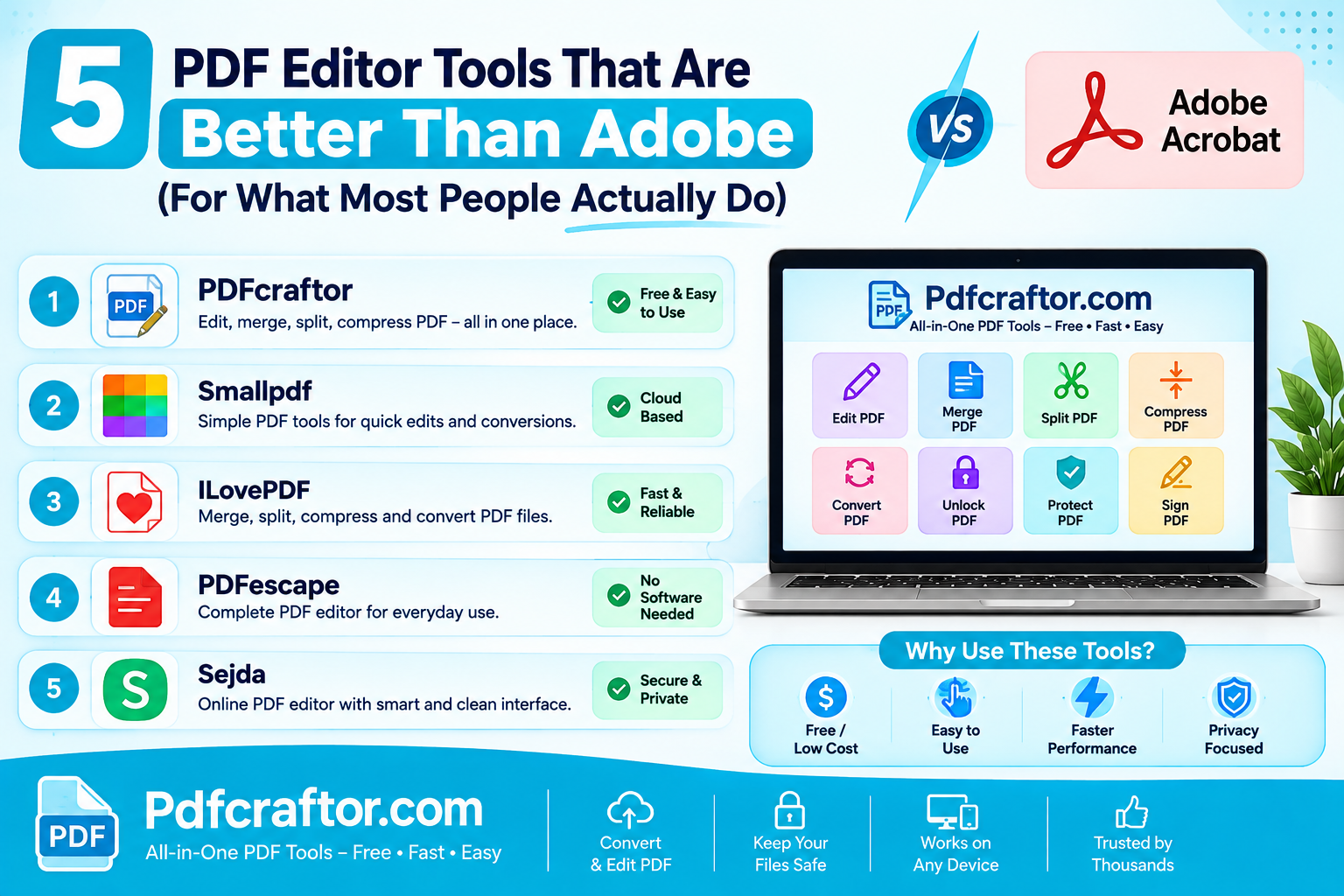
5 PDF Editor Tools That Are Better Than Adobe (For What Most People Actually Do)
Adobe Acrobat Pro costs around $240 a year. These 5 free PDF editor tools merge, split, compress and edit PDFs without the price, the account, or the bloat.
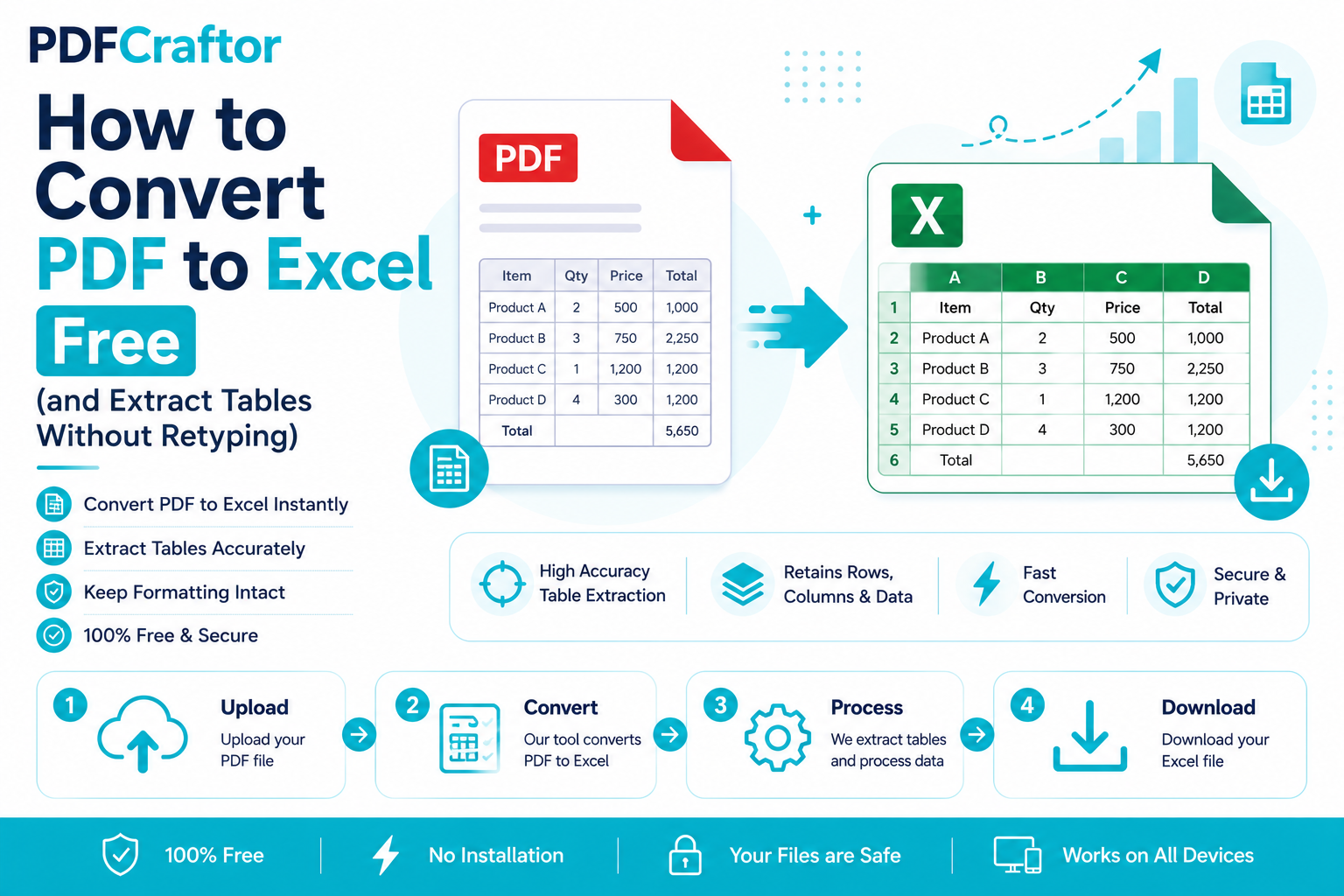
How to Convert PDF to Excel Free (and Extract Tables Without Retyping)
Learn how to convert PDF to Excel free and extract tables into editable spreadsheets, no manual retyping, no software. Works for bank statements and reports.
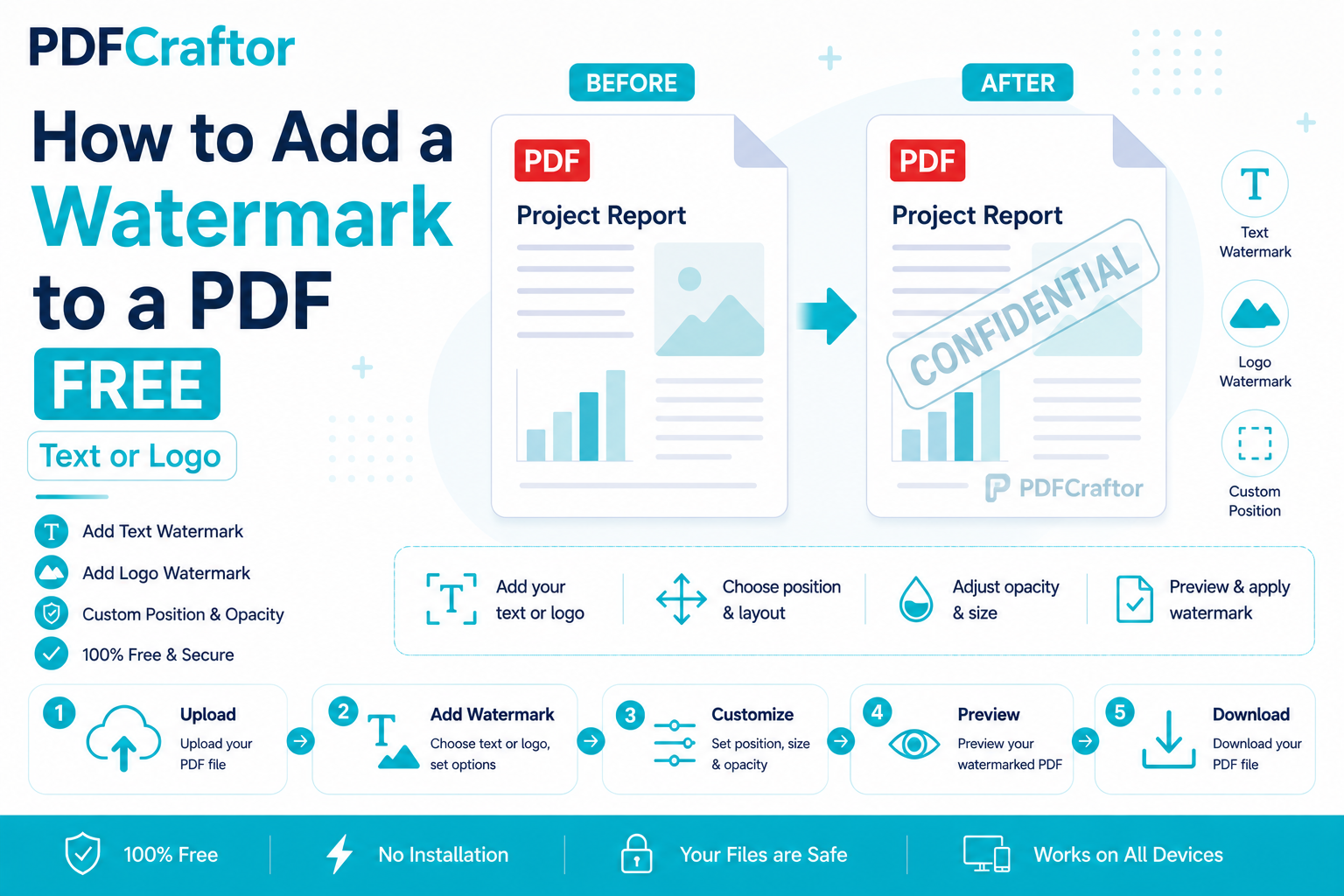
How to Add a Watermark to a PDF Free (Text or Logo)
Learn how to add a watermark to a PDF free stamp text like "Confidential" or your logo across pages, set opacity and position, online with no software.