PNG to PDF Converter: Truly Lossless Image-to-PDF Conversion
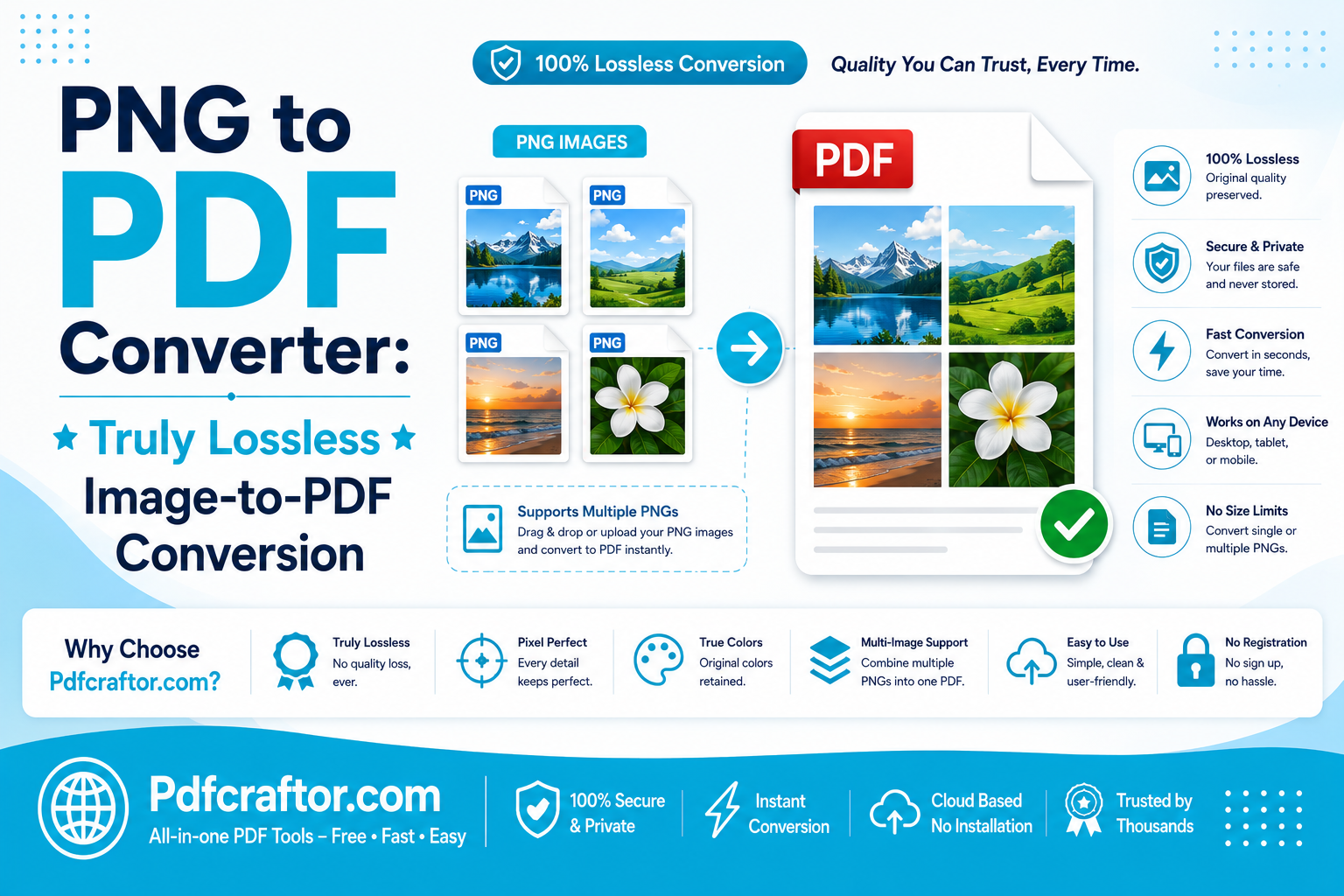
To convert PNG to PDF without quality loss, use a browser tool like PDFCraftor’s image to PDF converter, upload your PNG files, set quality to maximum so the image is embedded rather than re-compressed to JPEG, and download. This keeps crisp text, sharp edges, and the original resolution intact — no signup or watermark.
- Lossless tip: keep quality at 100 so the PNG is not re-encoded as JPEG inside the PDF
- Transparency: PDFs render a white page, so transparent areas usually appear white
- Formats: mix PNG with JPG, HEIC, and WebP in one file
- Privacy: files auto-deleted within 24 hours, SSL encrypted upload
PNG is the format people reach for when quality matters — logos, screenshots, charts, design exports, and anything with sharp text or clean edges. So when you convert PNG to PDF, the one thing you do not want is for that crisp image to come out soft or muddy on the other side. The frustrating part is that many converters quietly damage it, and the file looks fine until you zoom in.
This guide explains how to get a truly lossless result from a PNG to PDF converter, why some tools silently lower quality, and how to handle the transparency trap that turns clean PNGs into white boxes. By the end you will know exactly which settings to use and why.
Why PNG Quality Gets Lost in PDF (And How to Stop It)
PNG is a lossless format. It stores every pixel exactly, which is why text and sharp lines stay clean even after editing. The problem is what happens during conversion.
To make smaller files, many image to PDF tools re-encode your PNG as a JPEG inside the PDF. JPEG is a lossy format, so this step throws away detail — and it shows up worst on the very things PNG is good at: thin text, hard edges, and flat color areas, which pick up faint smudges called artifacts.
The fix is simple once you know it: set the quality or compression slider to its highest level (often labelled 100, “archival,” or “lossless”). At maximum quality, a good converter embeds the PNG without re-compressing it, so what you see in the PDF matches the original pixel for pixel. If you only remember one thing from this guide, remember that.
How to Convert PNG to PDF in 4 Steps
The whole process takes under a minute and needs no software install.
Step 1: Open the converter
Visit a free tool such as the PDFCraftor image to PDF converter in any browser. It runs on the page, so there is nothing to download.
Step 2: Upload your PNG files
Drag your PNG images in or click to select them. You can add several at once, and you can mix PNG with JPG, HEIC, and WebP if your set has different formats.
Step 3: Set quality to maximum and arrange pages
Push the quality setting to its highest value to keep the conversion lossless. Then drag the thumbnails into the order you want, and choose portrait or landscape.
Step 4: Convert and download
Click Convert, then open the finished PDF and zoom in on any text or logo to confirm the edges are still sharp before you send it.
The Transparency Trap: Why Your PNG Turns White
This is the second surprise people hit. You convert a transparent PNG — say a logo with no background — and in the PDF it sits on a solid white box. Nothing is broken; this is how PDF works.
A PDF page is drawn on a white canvas, so unless transparency is explicitly preserved, those see-through areas fill with white. Here is how to handle it based on what you need:
- For printing or sharing: a white background is usually fine and the safest choice, since some older viewers and print pipelines handle PDF transparency poorly.
- For overlays or design work: choose a tool that keeps the alpha channel so transparent areas pass through. Modern viewers like Adobe Reader, Preview, and browsers display this correctly.
- For colored backgrounds: flatten the PNG onto the background color you want before converting, using an online photo editor, so there is no guesswork.
One more note: transparency loss is most common when a file is pushed into CMYK color mode, because PNG does not support CMYK. For everyday screen and office use, stay in RGB and you will avoid the issue entirely.
PNG to PDF vs JPG to PDF: Which Should You Use?
Both feed into the same image to PDF converter, but the right source format depends on the content.
| Factor | PNG to PDF | JPG to PDF |
|---|---|---|
| Best for | Logos, text, screenshots, charts | Photos, scans, camera shots |
| Edges & text | Stays razor sharp | Can soften slightly |
| Transparency | Supported (renders white in PDF) | Not supported |
| File size | Larger source | Smaller source |
Rule of thumb: if your image has text or sharp graphics, keep it as PNG for a lossless result. If it is a photo, JPG is fine and gives a smaller file. If you already have a JPG that you want as PNG, convert it first with a JPG conversion tool before building the PDF.
Keep the File Size Reasonable
Lossless PNGs make larger PDFs, and a folder of high-resolution screenshots can balloon past email limits. You do not have to choose between quality and size if you compress in the right order.
First convert at full quality so the PDF stays sharp, then run the finished file through a compress PDF online tool. This trims the file intelligently without re-flattening every page. If a single PNG is enormous to begin with, a compress image online tool can shrink it first while keeping the layout clean.
Compare Common PNG to PDF Tools
Most converters do the basic job, but the settings that protect quality and transparency are where they differ.
| Tool | Lossless Option | Signup | Watermark |
|---|---|---|---|
| PDFCraftor | Yes, max quality | Not required | None |
| Smallpdf | Limited free | Optional | None on basic plan |
| CloudConvert | Yes | Optional | None |
| Adobe Online | Yes | Required | None |
Common Mistakes to Avoid
The conversion is simple, but quality slips when small details are missed. Do not leave the quality slider at its default middle value if your PNG has text — that is the JPEG re-compression trap. Do not assume a transparent logo will stay transparent without checking. Avoid resizing the PNG larger after conversion, which only blurs it; resize the source instead with a resize image online tool. And always preview the PDF at 100% zoom before sending.
Privacy and File Safety Tips
Screenshots and design files often contain private data — account details, internal dashboards, or unreleased work. Before you upload:
- Check that the tool uses HTTPS (look for the lock icon)
- Confirm files are deleted automatically — PDFCraftor removes them within 24 hours
- Crop out anything sensitive before converting
- Avoid uploading confidential files on public Wi-Fi
FAQ
Does converting PNG to PDF reduce quality?
It can, if the tool re-encodes your PNG as JPEG to save space. Set the quality to maximum so the image is embedded losslessly, and the PDF will match your original PNG.
Why does my transparent PNG show a white background in the PDF?
PDF pages are drawn on a white canvas, so transparent areas fill with white unless the tool preserves the alpha channel. For colored backgrounds, flatten the PNG in a photo editor before converting.
Can I convert multiple PNG files into one PDF?
Yes. Upload all your PNGs at once, drag them into the order you want, and the converter merges them into a single multi-page PDF.
Is a PNG to PDF converter free to use?
Yes. PDFCraftor’s image to PDF converter is free, needs no signup, and adds no watermark to your file.
Should I use PNG or JPG for the best PDF?
Use PNG for logos, text, and screenshots where sharp edges matter. Use JPG for photos, where a smaller file size is more useful than perfect edges.
Conclusion
A good PNG to PDF converter should protect the very thing PNG is built for — sharp, lossless detail. The trick is knowing the two settings that matter: push quality to maximum so your image is embedded instead of re-compressed, and decide upfront how you want transparency handled. Do that, preview at full zoom, and your PDF will look exactly like the original. With PDFCraftor’s image to PDF converter and the small toolkit around it, lossless PNG to PDF conversion takes seconds and stays free.
Share this article
Sharad Mishra
Content Writer
Published on July 4, 2026
Related Articles
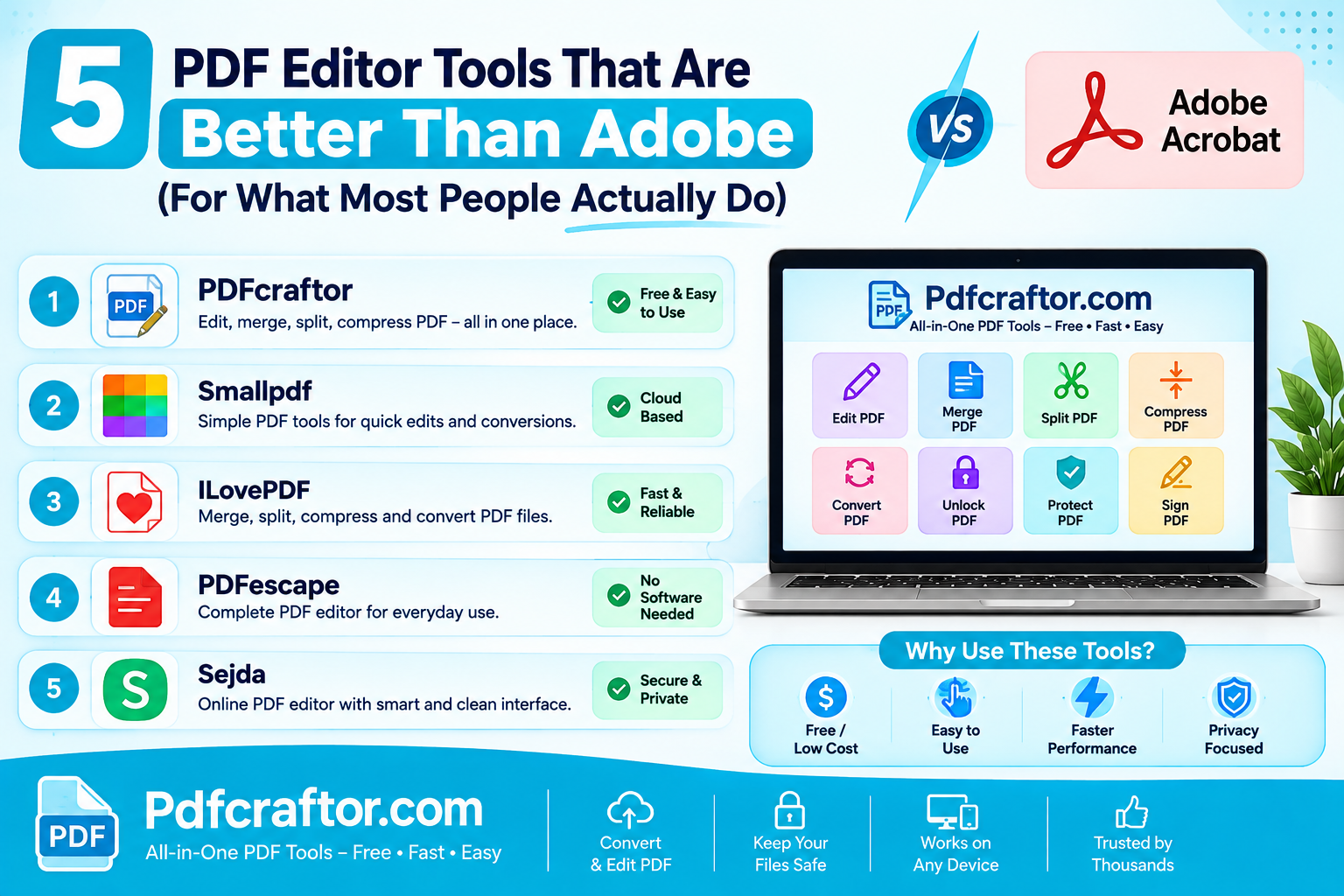
5 PDF Editor Tools That Are Better Than Adobe (For What Most People Actually Do)
Adobe Acrobat Pro costs around $240 a year. These 5 free PDF editor tools merge, split, compress and edit PDFs without the price, the account, or the bloat.
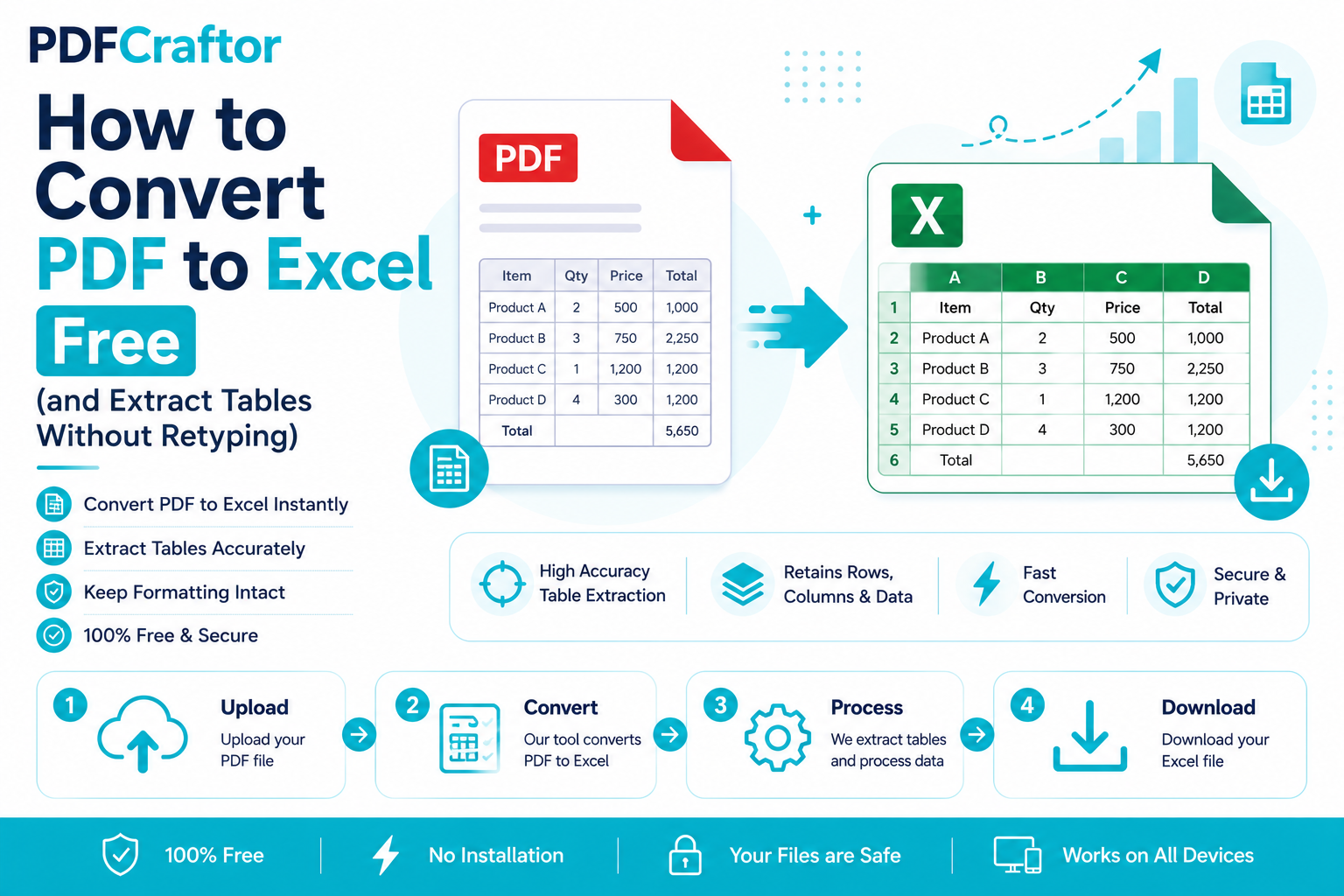
How to Convert PDF to Excel Free (and Extract Tables Without Retyping)
Learn how to convert PDF to Excel free and extract tables into editable spreadsheets, no manual retyping, no software. Works for bank statements and reports.
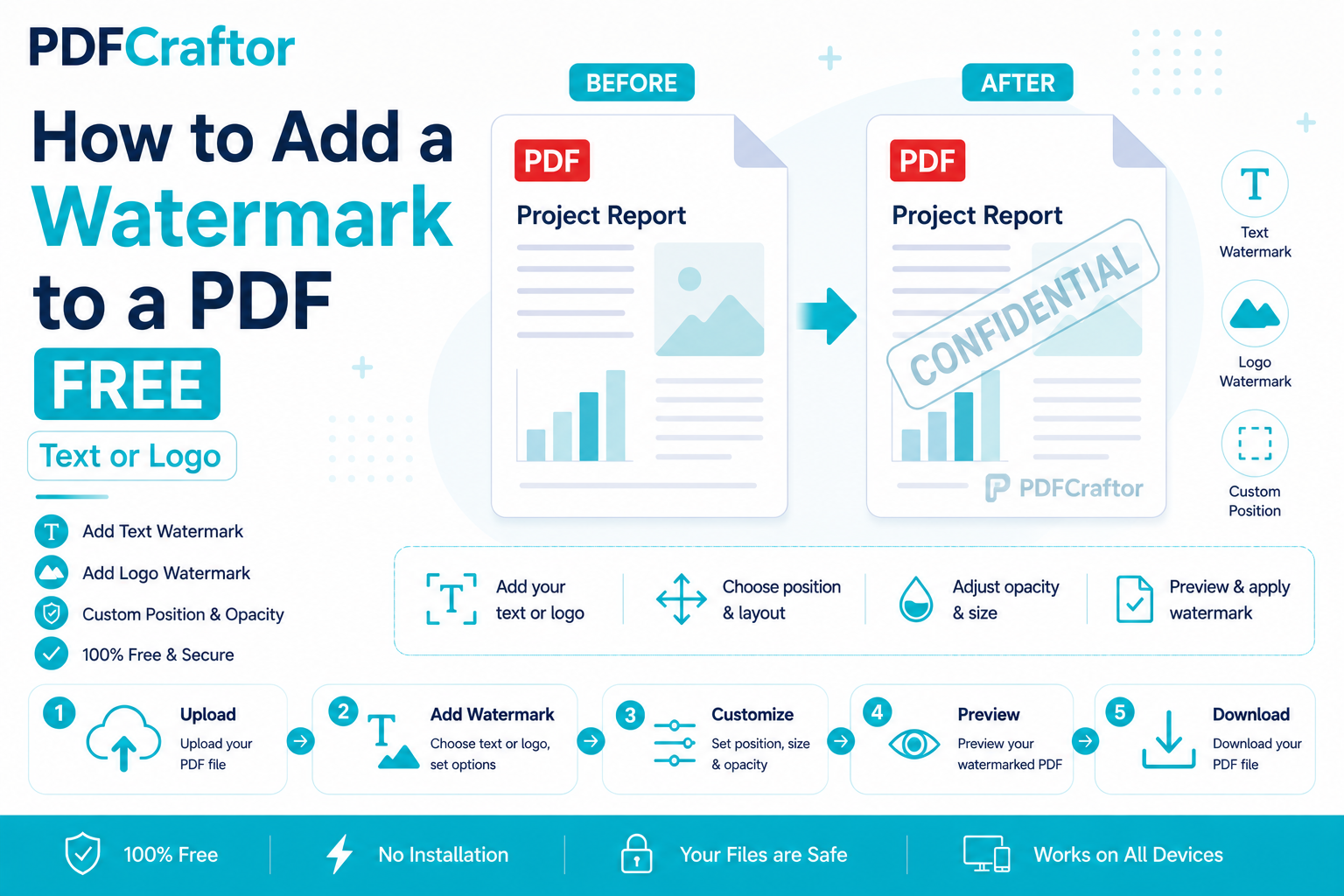
How to Add a Watermark to a PDF Free (Text or Logo)
Learn how to add a watermark to a PDF free stamp text like "Confidential" or your logo across pages, set opacity and position, online with no software.