How to Split a PDF Free: Cut, Separate and Extract Pages
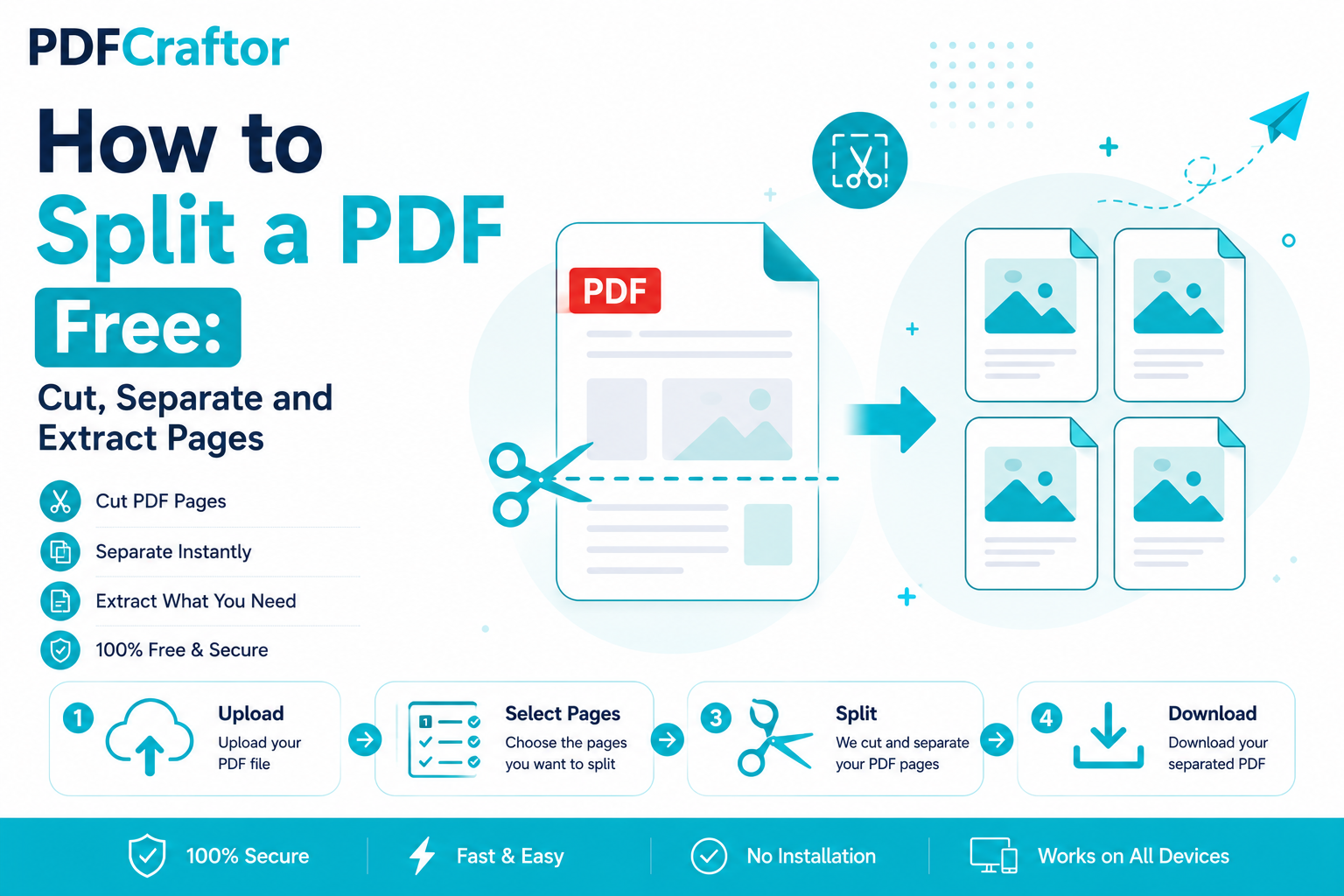
To split a PDF for free, upload it to a browser-based split PDF tool, choose the pages or range you want to keep, and download the new file. It takes under a minute, needs no software, and never changes your original.
- Extract a range: pull pages 12–15 into a fresh PDF
- Separate every page: turn one scan into individual files
- Cut out pages: keep the document minus a blank or duplicate
- Free & safe: no signup, no watermark, original untouched
A 60-page PDF landed in your inbox, but you only need pages 12 to 15. Or maybe you scanned a whole stack of documents into one giant file and now need each one separate. Splitting a PDF fixes both, and no, you don't need to reprint anything or buy Adobe.
People search for this using all sorts of words ("PDF cutter", "PDF splitter", "separate PDF pages") but they all mean the same thing: take one PDF and break it into the pieces you actually want. Here's how to do it free, in your browser.
Split a PDF in 4 Steps
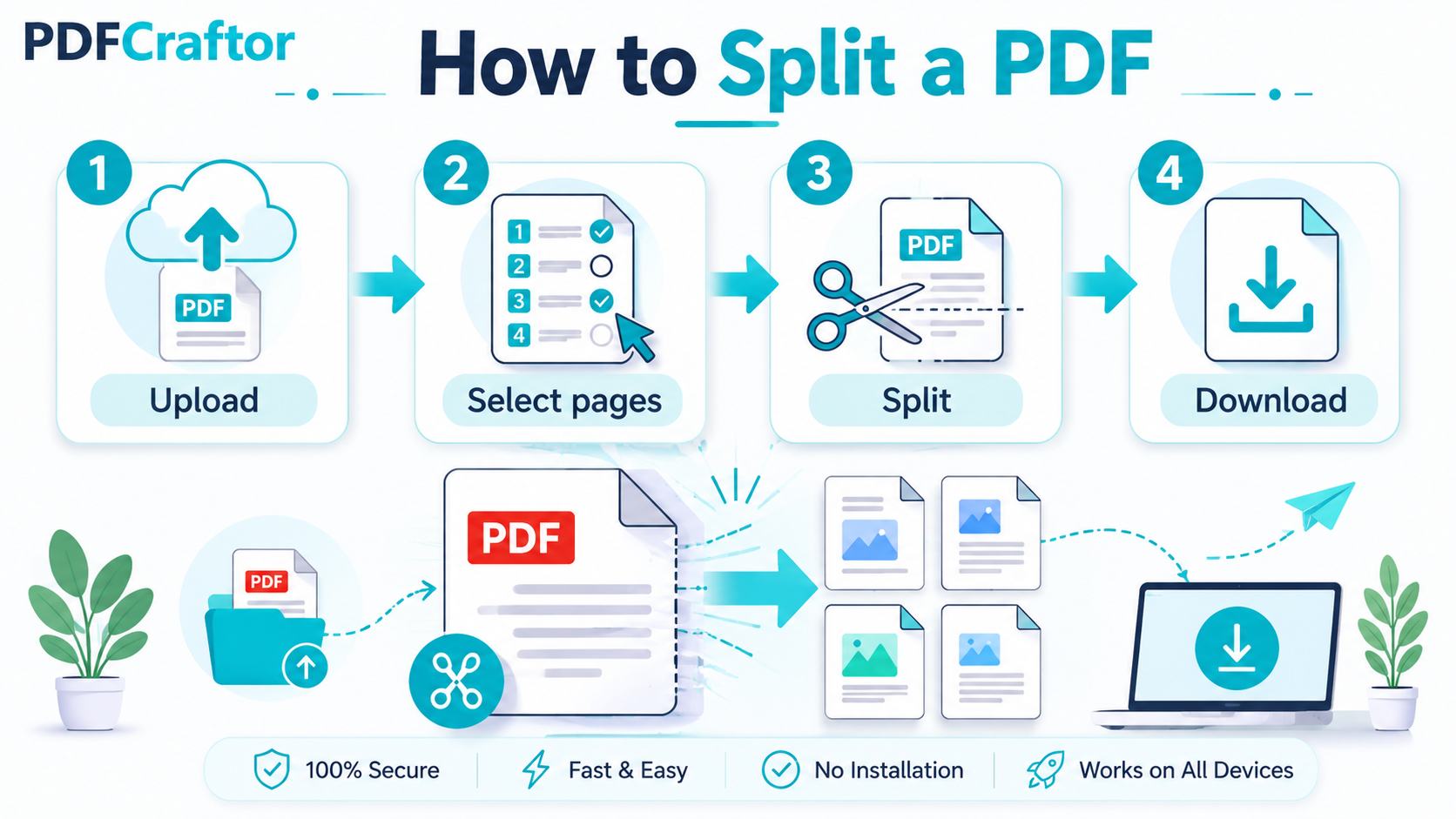
Infographic by pdfcraftor.com
The direct answer: upload your PDF, select the pages you want, click split, and download the result. With the free split PDF tool, it takes under a minute.
- Upload the PDF. Drag and drop or select the file you want to cut.
- Select your pages. Choose a specific page range (say 12 to 15), or extract every page into separate files.
- Split. Hit the "Split PDF" button to process.
- Download. Save your new documents to your device instantly, as one file or a zip of several.
"Splitting", "cutting", and "separating" a PDF are the same job. One browser tool covers all of them.
3 Ways to Split a PDF (and When to Use Each)
Not every split is the same. Knowing which one you need saves you a lot of clicking.
1. Extract a page range
You want pages 12–15 out of a big report. Enter the range and pull just those pages into a fresh PDF. This is the most common need, grabbing the section that matters and leaving the rest behind.
2. Separate every page
You scanned ten invoices into one file and need each as its own PDF. Split by every page, and the tool hands you ten separate files. Perfect for filing or emailing them individually.
3. Cut out unwanted pages
Sometimes it's the reverse. You want the whole document minus a couple of pages (a blank scan, a duplicate). Select the pages to keep and drop the rest. Decide first whether you're keeping a section or removing one; that single choice tells you which method to use.
Extract or Cut Out Specific Pages
This is the part people find fiddly, so let's make it concrete. Say your file is a 30-page contract and you only need the signature page, page 29. Enter "29" as your range, and you get a one-page PDF. Need pages 1, 5, and 29 together? List them, and the tool pulls exactly those into a single file, in order.
Once you've split a document, you'll often want to do one more thing with the pieces. You can merge the pages back in a new order, or compress the PDF if it's still heavy from scanning.
Common Problems (and Fixes)
| Problem | Fix |
|---|---|
| The PDF is password-protected | Remove the password first with an unlock PDF tool, then split. |
| My split files are huge | Scanned pages are image-heavy, run the output through a compressor before emailing. |
| I split the wrong pages | Nothing is overwritten. Re-upload and choose the correct range. |
| Pages came out in the wrong order | When extracting non-sequential pages, list them in the order you want the final file to read. |
Real Situations Where Splitting Helps
Splitting sounds technical until you notice how often it comes up in ordinary life. A few examples that probably feel familiar:
- Job applications: a portal wants only your degree certificate, but it's buried on page 7 of a combined scan. Pull that one page out and upload it clean.
- Sharing selectively: your 40-page report has one confidential appendix. Split it off so you can send the rest without exposing sensitive figures.
- Filing invoices: a month of receipts scanned into one file becomes twelve tidy PDFs, each stored on its own.
- Study notes: pull the three chapters you're revising out of a 300-page textbook PDF so your phone isn't loading the whole thing every time.
In every case the pattern is identical: you don't need the whole document, you need a piece of it. And because the tool never overwrites your source file, there's no risk in experimenting, try one range, check the result, adjust.
Split vs Merge: Two Sides of the Same Coin
Splitting and merging are opposite moves, and most document tasks use one right after the other. Splitting breaks a file apart; merging joins files together. Knowing which you need saves a wrong turn.
| You want to... | Use |
|---|---|
| Pull specific pages out of one PDF | Split |
| Combine several PDFs into one file | Merge |
| Reorder the pages of a document | Split, then merge in the new order |
| Remove a few unwanted pages | Split and keep only the good pages |
A common real-world workflow looks like this: you split a scanned bundle into single documents, throw away the blanks, then merge just the ones you actually need into a fresh, clean file. Because both tools are free and run in the browser, you can bounce between them as many times as you like without installing anything or risking your originals. That flexibility is the quiet advantage of doing this online. There's no "save over" button waiting to catch you out, so experimenting costs you nothing but a few seconds.
FAQ
How do I split a PDF for free?
Upload your PDF to a browser-based split tool like PDFCraftor, choose the page range or pages you want, and download the new file. It's free, with no signup and no watermark.
What's the difference between a PDF cutter and a PDF splitter?
Nothing. They're the same thing. "PDF cutter", "PDF splitter", and "separate PDF pages" all describe breaking one PDF into smaller files or extracting specific pages.
Can I extract just one page from a PDF?
Yes. Enter that single page number as your range and the tool creates a one-page PDF containing only it.
Will splitting reduce the quality of my PDF?
No. Splitting simply copies the selected pages exactly as they are into a new file. Text, fonts, and images stay untouched.
Can I split a PDF on my phone?
Yes. The tool runs in your mobile browser, so you can split a document from your phone's storage without installing an app.
Conclusion
To recap: splitting a PDF just means keeping the part you want and dropping the rest, whether that's one signature page, a clean set of separated invoices, or a document with a couple of pages removed. Decide first whether you're keeping a section or removing one, pick the matching method, and download. It's free, it runs in any browser, and it never touches your original file, so there's zero risk in trying. Once you've got your pieces, you can merge them in a new order or compress them for email in a few more clicks. No software, no subscription, no reprinting, just the pages you actually need, in seconds.
Share this article
Sharad Mishra
Content Writer
Published on July 12, 2026
Related Articles
5 PDF Editor Tools That Are Better Than Adobe (For What Most People Actually Do)
Adobe Acrobat Pro costs around $240 a year. These 5 free PDF editor tools merge, split, compress and edit PDFs without the price, the account, or the bloat.
How to Convert PDF to Excel Free (and Extract Tables Without Retyping)
Learn how to convert PDF to Excel free and extract tables into editable spreadsheets, no manual retyping, no software. Works for bank statements and reports.
How to Add a Watermark to a PDF Free (Text or Logo)
Learn how to add a watermark to a PDF free stamp text like "Confidential" or your logo across pages, set opacity and position, online with no software.