What Software Compresses Photos Without Reducing Image Quality?
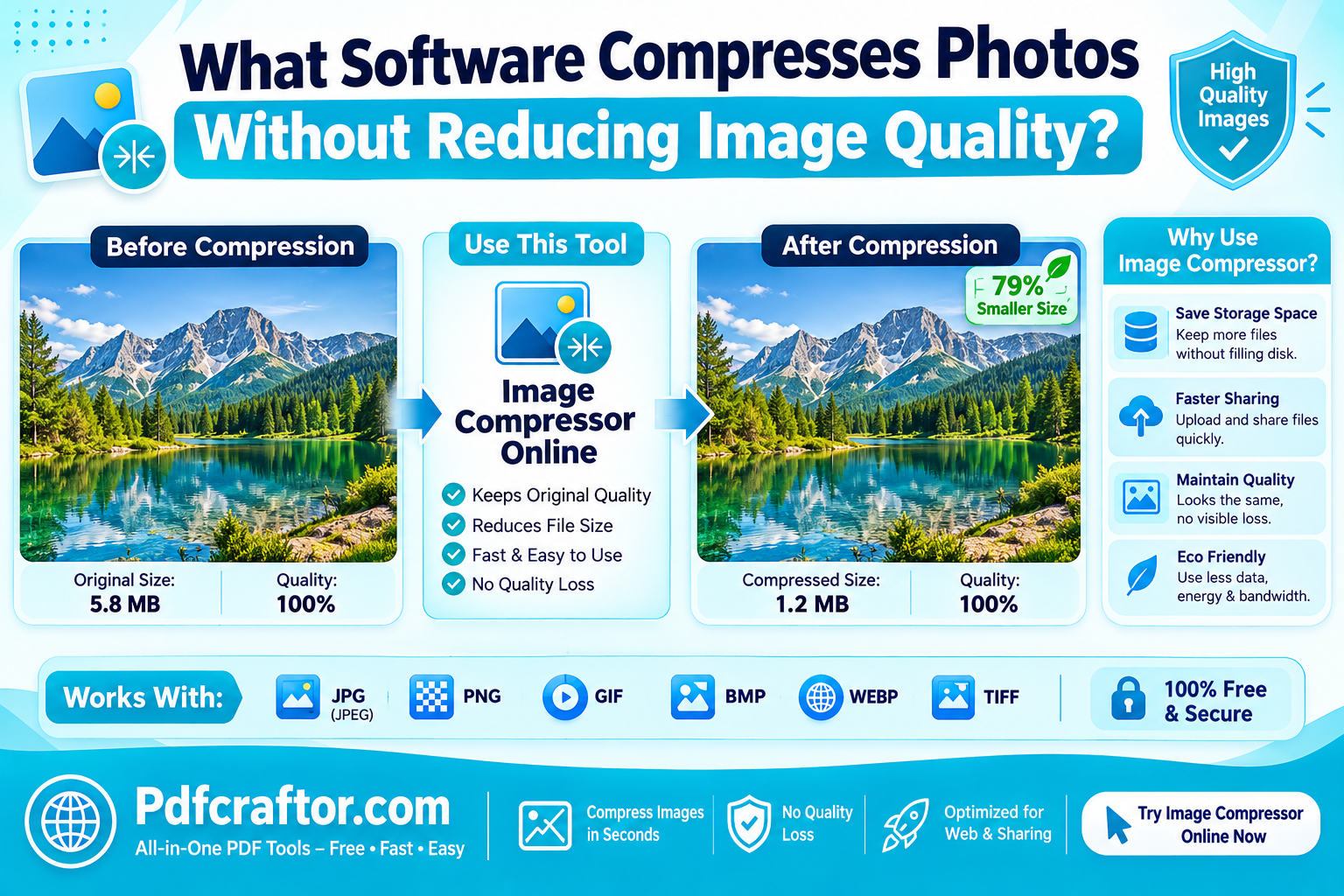
For most people, a free browser tool is all you need: the PDFCraftor image compressor shrinks photos 50 to 70% with no visible quality loss, no signup, and no watermark. If you compress hundreds of photos regularly, a desktop app like Caesium (Windows) or ImageOptim (Mac) is worth installing. TinyPNG and Squoosh are solid online picks too.
- Occasional use: online tool, nothing to install
- Bulk or offline work: free desktop app
- Heavy PNG or HEIC photos: convert to JPG first, file size drops before you even compress
Search for photo compression software and you'll find twenty listicles recommending forty different tools, half of them written by the companies selling those tools. Not exactly neutral advice.
Here's the honest version. You don't need paid software to compress photos well. The maths behind image compression is the same everywhere; what differs is convenience, batch limits, privacy, and price. This guide compares the genuinely useful free options and tells you which type of user each one suits. No affiliate links, no fake rankings.
What Should You Look For in Photo Compression Software?
Before the list, four things separate a good compressor from a frustrating one:
- Quality control. Can you choose how much compression to apply, or does it decide for you? A quality slider or presets means you stay in charge.
- Batch support. Compressing one photo is easy anywhere. Compressing 200 wedding photos is where free tiers start showing their limits.
- Privacy. Online tools upload your image to a server. For family photos or ID documents, check the tool deletes files after processing and doesn't force an account.
- Real cost. "Free" sometimes means free until file two, or free with a watermark. Read the limits, not the headline.
Which Free Tools Compress Photos Best?
These five cover practically every situation. Pick by how you work, not by hype.
1. PDFCraftor Image Compressor (online, free)
Runs in the browser on any device, including your phone. Upload a JPG or PNG, and it compresses with settings tuned to stay below the visible-loss threshold. There's no signup, no watermark, and no daily task wall, which is rarer than it should be among online tools. Since it sits inside a full toolkit, you can also resize an image online or crop it in the same visit, handy for form uploads that demand exact dimensions and KB limits both.
Best for: everyday compression, mobile users, and anyone who refuses to create yet another account.
2. TinyPNG (online, freemium)
The veteran of online compression, famous for its panda mascot and smart lossy compression of PNGs. It regularly cuts PNG sizes by 60% or more. The free tier caps you at 20 images per batch and 5 MB per file, and the developer API is paid.
Best for: web designers working with PNG graphics who stay under the free caps.
3. Squoosh (online, free)
Google's open-source compressor with a brilliant side-by-side preview slider, drag it and watch quality change in real time. It supports modern formats like WebP and AVIF and processes images in your browser, so files never leave your device. The catch: one image at a time, no batch mode.
Best for: tinkerers who want to see exactly what each setting does, and privacy-conscious users.
4. Caesium Image Compressor (Windows desktop, free)
A free, open-source desktop app that batch-compresses thousands of photos in one go, with a quality slider and folder watching. Nothing gets uploaded anywhere because it all happens on your PC. The interface looks a little dated, but it simply works.
Best for: photographers and anyone compressing photos in bulk on Windows.
5. ImageOptim (Mac desktop, free)
The Mac favourite. Drag a pile of images onto its window and it silently strips metadata and squeezes files using multiple compression engines. Lossless by default, with lossy options if you want smaller files. Mac only, which is its one real limitation.
Best for: Mac users who want set-and-forget compression.
| Tool | Type | Batch? | Signup? | Watermark? | Cost |
|---|---|---|---|---|---|
| PDFCraftor | Online | Yes | No | No | Free |
| TinyPNG | Online | 20 files, 5 MB cap | No (free tier) | No | Freemium |
| Squoosh | Online (in-browser) | No | No | No | Free |
| Caesium | Windows desktop | Yes, unlimited | No | No | Free |
| ImageOptim | Mac desktop | Yes, unlimited | No | No | Free |
Should You Choose Online or Desktop Software?
Simple test: how often do you compress, and how sensitive are the photos?
Choose online if you compress occasionally, work from a phone, or use shared computers where you can't install anything. Modern online tools are fast, and good ones delete your files after processing.
Choose desktop if you regularly handle hundreds of images, work offline, or deal with private material you'd rather never upload, client photos, ID scans, medical images. Local processing means the file never leaves your machine.
Plenty of people sensibly use both: a desktop app for big photography batches, and an online compressor for the quick one-off jobs that pop up everywhere else.
Why Convert an Image to JPG Before Compressing?
Here's a trick most software lists never mention, and it often saves more space than compression itself.
Photos frequently arrive in the wrong format. Screenshots come as PNG. iPhones shoot HEIC. Design exports come as heavy 24-bit PNGs. PNG is a lossless format, wonderful for logos and text, terrible for photographs. The same photo stored as PNG can be five times larger than as JPG, before any compression happens.
So the smart workflow for any photo that isn't already a JPG: run it through the free convert image to JPG tool first, then compress the JPG. Two small steps, and a 4 MB PNG screenshot routinely lands under 200 KB. If you're not sure which formats do what, JPG is lossy and built for photos, PNG is lossless and built for graphics, and WebP does both but isn't accepted by every portal yet.
How Much Can You Reduce Image Size Before You See It?
More than you'd think. The numbers from compression research are consistent:
- A JPEG at 80% quality is typically 50 to 70% smaller than the original, with no difference visible on a normal screen.
- WebP goes further, Google's data shows it produces files 25 to 34% smaller than JPEG at equivalent quality.
- Compression ratios of 10:1 are routine for photographs before anyone notices anything.
Don't take the percentages on faith. Upload one of your own photos, reduce image size for free, and compare the before-and-after numbers yourself.
The one mistake to avoid: compressing the same JPEG over and over. Each save at a lossy setting throws away a little more data, and after several rounds the damage stacks up. Compress once, from the original, and keep that original safe.
Want the exact steps and the KB-target recipes for form uploads? Our guide on how to compress an image online without losing quality walks through the whole process, including getting photos under 100 KB, 50 KB and 20 KB.
FAQ
What is the best free software to compress photos without losing quality?
For occasional use, a free online tool like PDFCraftor's image compressor is the fastest option, with no signup or watermark. For bulk work, Caesium (Windows) and ImageOptim (Mac) are free desktop apps that compress unlimited photos locally.
Which is better for photos, JPG or PNG?
JPG. It's designed for photographs and compresses them 50 to 70% with no visible loss. PNG is lossless and suits logos, screenshots and graphics with text, but makes photo files several times larger.
How do I convert an image to JPG without losing quality?
Use a free online converter, upload your PNG, HEIC or WebP file, and download the JPG at a high quality setting. Converting a photo to JPG at 85 to 90% quality produces no change you can see on screen.
Are online image compressors safe?
Reputable ones are. Look for tools that use a secure connection, delete files after processing, and don't demand an account. For highly sensitive images, a desktop app that works offline is the extra-cautious choice.
Is TinyPNG better than Squoosh?
They serve different needs. TinyPNG is quicker for small PNG batches, while Squoosh gives you fine control, a live preview, and modern formats like WebP and AVIF, and it processes everything inside your browser.
What software reduces image size for free on a phone?
You don't need an app. Browser-based compressors work on Android and iPhone, upload from your gallery, compress, and download. That skips the storage and permissions an installed app would demand.
Conclusion
The best software to compress photos without reducing image quality is usually the one with the least friction. For nine jobs out of ten, that's a free online compressor: open, upload, download, done. Photographers and bulk users should grab Caesium or ImageOptim and compress locally. And whatever tool you choose, remember the two habits that matter more than the software: convert non-JPG photos to JPG first, and compress once from the original instead of recompressing old copies. Try the free image compressor on your heaviest photo and check the before-and-after size yourself, that number is more convincing than any listicle.
Share this article
Sharad Mishra
Content Writer
Published on August 17, 2026
Related Articles
How Do You Compress an Image Online Without Losing Quality?
Compress image online without losing quality in 3 simple steps. Get the right quality setting,hit exact KB targets for uploads, and know when to resize instead.

How Does an Education Loan EMI Calculator Help in Financial Planning?
How an education loan EMI calculator helps in financial planning: test tenure and rate scenarios, keep EMI within your salary, and time Section 80E tax savings.
What Is the Role of a Financial Calculator Online in Business Decisions?
How a financial calculator online sharpens business decisions: price with margin math, test loan EMIs, get GST right, and park surplus cash at NSC's 7.7%.