How Do You Compress an Image Online Without Losing Quality?
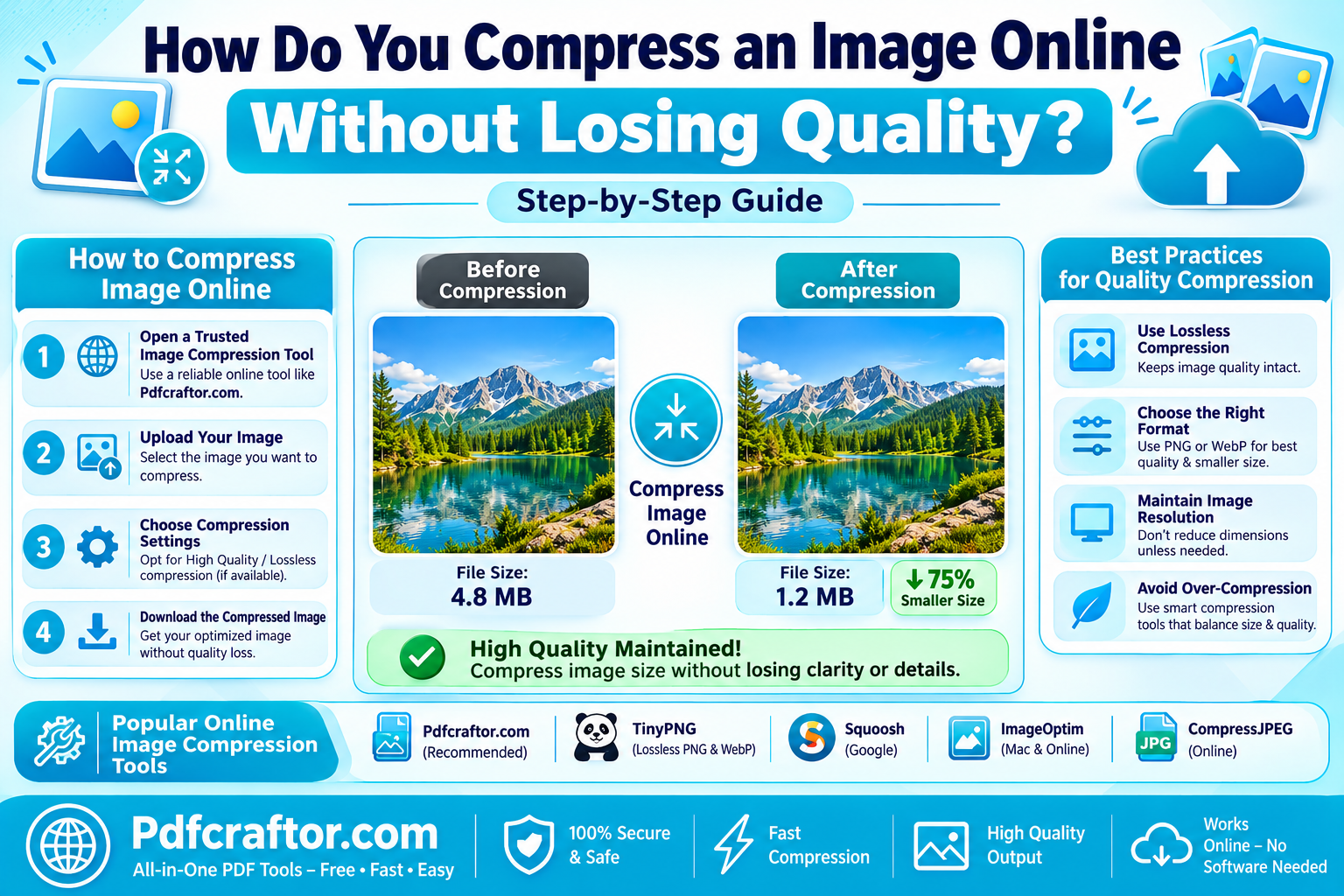
Upload your photo to a free tool like the PDFCraftor image compressor, keep the quality setting around 80%, and download the smaller file. A typical JPEG shrinks by 50 to 70% with no visible change, because compression removes data your eyes never notice.
- Quality 80 is the sweet spot: big size savings, no visible loss
- Need an exact KB size? Resize the dimensions first, then compress
- It's free: no signup, no watermark, works on mobile too
You click upload, and the portal throws an error: "File size must be under 100 KB." Your photo is 3 MB. Sound familiar?
Whether it's an exam form, a visa application, or a website that loads like it's 2009, oversized images cause real problems. The good news is that most photos carry far more data than any screen can show. You can throw away half of it, sometimes more, and nobody will spot the difference. This guide shows you exactly how, and how to hit those annoying exact KB limits without turning your photo into a blurry mess.
What Does "Without Losing Quality" Really Mean?
Image compression comes in two flavours, and knowing the difference saves you a lot of confusion.
Lossless compression repacks the data more efficiently without deleting anything. Think of it like folding clothes neatly into a suitcase. The file gets smaller, and the image stays pixel-perfect. PNG works this way.
Lossy compression permanently removes data your eyes are least likely to notice, tiny colour variations, fine noise, that kind of thing. JPEG works this way. The removal is one-way, so always keep your original file somewhere safe.
Here's the part most people miss: "lossy" does not mean "visibly worse". A JPEG saved at 80% quality is usually indistinguishable from the original on any normal screen, yet the file can be 50 to 70% smaller. That's why "compress without losing quality" is a realistic promise, not marketing talk. The loss is mathematical, not visual.
How Do You Compress an Image Online in 3 Steps?
No software to install, no account to create. The whole thing takes under a minute.
- Open the tool. Go to the free compress image online tool on PDFCraftor. It runs in your browser, on desktop or phone.
- Upload your image. Drag and drop your JPG or PNG, or tap to select it from your gallery.
- Compress and download. The tool shrinks the file and shows you the new size. Check the preview, then download.
That's it for most everyday cases, sharing on WhatsApp, emailing documents, posting on a website. If you need a specific KB number for a form upload, jump to the KB targets section below, because that needs one extra trick.
What Quality Setting Should You Use?
If your tool shows a quality slider, 80 is the number to remember. Below roughly 60, JPEGs start showing blocky patches in skies and skin tones. Above 90, file size balloons for almost no visible gain.
Different jobs need different sizes though. Use this as your cheat sheet:
| Where the image goes | Recommended size | Target file size |
|---|---|---|
| Website hero or banner | 1920 x 1080 px | Under 200 KB |
| Blog or article image | 800 to 1200 px wide | Under 100 KB |
| Thumbnail or profile photo | 150 to 400 px | Under 30 KB |
| Social media share (OG image) | 1200 x 628 px | Under 150 KB |
| Email attachment | 1024 px wide | Under 500 KB |
Why bother? Speed, mostly. Images are usually the heaviest part of a web page, and visitors abandon slow sites long before they abandon slightly-less-crisp photos. A page that loads in two seconds with 100 KB images beats a page that loads in eight seconds with 2 MB ones, every single time.
How Do You Get a Photo Under 100 KB, 50 KB, or 20 KB?
This is the question behind most compression searches in India, because government portals, exam forms, and job applications love strict limits. SSC and UPSC photo uploads often demand 20 to 50 KB. Passport photos, signatures, ID scans, all have their own caps.
Compression alone won't always get a 4000-pixel phone photo down to 20 KB without wrecking it. The trick is a two-step recipe:
- Resize first. Use the free resize image online tool to bring the dimensions down. A 20 KB passport-style photo only needs to be around 200 x 230 pixels. A 100 KB document scan does fine at 800 to 1000 pixels wide. Shrinking dimensions removes far more KB than compression ever can.
- Then compress. Run the resized file through the compressor. Because the image now has fewer pixels, even gentle compression lands you comfortably under the limit with quality intact.
One more tip: if the form wants a tight crop of just your face or signature, crop the image before resizing. Why compress pixels you're going to throw away anyway?
What's the Difference Between Compressing and Resizing an Image?
People use these words interchangeably, but they do completely different things.
- Compressing keeps the same dimensions and reduces file size by storing the pixel data more efficiently. A 1920 x 1080 photo stays 1920 x 1080, just lighter.
- Resizing changes the actual dimensions. A 4000 x 3000 photo becomes 1200 x 900, so there are simply fewer pixels to store.
A quick rule of thumb: if the image will be viewed small (a thumbnail, a form upload, a phone screen), resize it. If it needs to stay large but load faster (a website banner), compress it. For the smallest possible file, do both, resize first, compress second.
Does the Format Matter? JPG, PNG, or WebP?
Quite a lot, actually. The format decides how well compression works before you touch a single setting.
- JPG is built for photos. It compresses 50 to 70% with no visible loss and every website, portal, and printer accepts it. Around 78% of all websites still use JPEG.
- PNG is lossless, perfect for screenshots, logos, and graphics with text. But for photos it produces huge files. A photo saved as PNG can be five times heavier than the same photo as JPG.
- WebP is the modern web format. Google's own data shows WebP files are 25 to 34% smaller than equivalent JPEGs. Great for websites, though some older portals still reject it.
So if someone sends you a heavy PNG photo or your phone shoots in HEIC, convert it to JPG first with the free convert image to JPG tool, then compress. The format switch alone often cuts the file in half before compression even starts. And if you're choosing software for regular bulk work, our guide to the best software to compress photos without losing quality compares the top free options.
FAQ
How can I compress an image without losing quality?
Use a free online compressor, keep the quality setting at about 80%, and download the result. A JPEG typically shrinks 50 to 70% at that setting with no change you can see on screen.
Does compressing an image reduce its quality?
Technically some data is removed, but at sensible settings the difference is invisible to the human eye. Quality only visibly drops when you compress too aggressively, usually below the 60% quality mark, or compress the same file repeatedly.
How do I compress a JPEG to 100 KB?
Resize the image to around 800 to 1000 pixels wide first, then run it through an online compressor. Resizing plus compression together will bring most photos under 100 KB while keeping them sharp.
Is it better to resize or compress an image?
Resize when the image will be viewed small or a form demands a strict KB limit. Compress when the image must keep its dimensions but load faster. For the smallest file, resize first and compress after.
Is it safe to compress images online?
With a reputable tool, yes. PDFCraftor processes your image over a secure connection and doesn't require any signup, so no account data is attached to your files.
Can I compress images on my phone?
Yes. Browser-based tools work on Android and iPhone without installing an app. Open the compressor in your mobile browser, upload from your gallery, and download the smaller file.
Conclusion
Compressing an image without losing quality isn't a trick, it's just using settings sensibly. Keep quality around 80 and a JPEG drops by half or more with nothing visible to show for it. When a portal demands an exact KB limit, resize the dimensions first, then compress, and you'll clear 100 KB, 50 KB, even 20 KB caps without the blur. Keep your originals safe, convert heavy PNG or HEIC files to JPG before compressing, and let the free image compressor handle the rest. Your uploads will sail through, and your website will thank you with faster load times.
Share this article
Sharad Mishra
Content Writer
Published on August 17, 2026
Related Articles
What Software Compresses Photos Without Reducing Image Quality?
Which software compresses photos without reducing image quality? 5 free tools compared, online and desktop, plus the JPG conversion trick that halves file size.

How Does an Education Loan EMI Calculator Help in Financial Planning?
How an education loan EMI calculator helps in financial planning: test tenure and rate scenarios, keep EMI within your salary, and time Section 80E tax savings.
What Is the Role of a Financial Calculator Online in Business Decisions?
How a financial calculator online sharpens business decisions: price with margin math, test loan EMIs, get GST right, and park surplus cash at NSC's 7.7%.