How to Convert PDF to Excel Free (and Extract Tables Without Retyping)
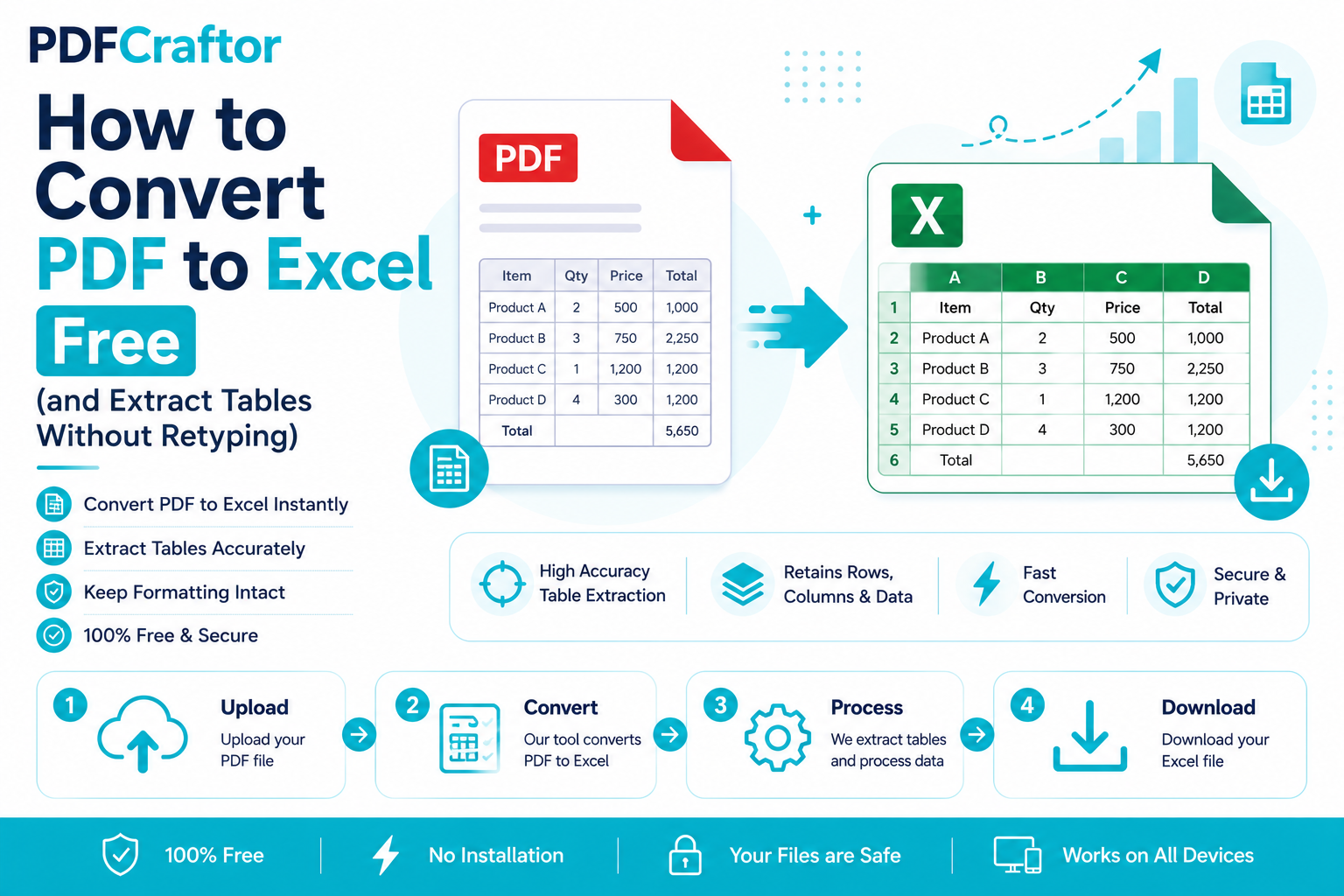
To convert a PDF to Excel for free, upload it to a browser-based PDF to Excel converter, let it detect the tables, and download an editable .xlsx file. Unlike copy-paste, it rebuilds the rows and columns so you can sort, total, and filter straight away.
- No retyping: the tool reconstructs the table structure automatically
- Best input: a digital PDF with selectable text (not a scan)
- Scans need OCR: a scanned PDF is an image and must be recognised first
- Great for: bank statements, price lists, financial reports

Infographic by pdfcraftor.com
Copy a table out of a PDF and paste it into Excel. Go on, try it everything lands in one messy column, numbers jammed together, hours of cleanup ahead. That single frustration is why "how to convert PDF to Excel" gets searched thousands of times a day.
The fix is simpler than the workaround. A proper converter reads the structure of your PDF table and rebuilds it as real rows and columns in a spreadsheet. Here's how to do it free, and how to get clean results even from tricky files.
Convert PDF to Excel in 3 Steps
The short version: upload the PDF, let the tool detect the tables, and download an editable .xlsx file. Using the free PDF to Excel converter:
- Upload your PDF. Drop in the file that holds your table or report.
- Let it detect tables. The tool maps the rows and columns automatically.
- Download the spreadsheet. Open it in Excel, Google Sheets, or LibreOffice and start editing.
The goal isn't just "get the numbers out" it's getting them into the right cells so you can actually sort, total, and filter them.
Why Copy-Paste Fails (and This Doesn't)
A PDF doesn't store a table the way a spreadsheet does. It stores the look of a table lines and text positioned on a page but not the underlying grid. So when you copy-paste, your software has no idea where one cell ends and the next begins.
A dedicated converter is built to solve exactly that. It analyses spacing, borders, and alignment to reconstruct which value belongs in which cell. The result: a spreadsheet you can immediately work with, instead of a column of jumbled text you'd spend an afternoon untangling. Copy-paste moves text; a converter rebuilds structure. That's the whole difference.
Extracting Tables Cleanly
Most people converting PDF to Excel are after one thing: the table. Financial reports, price lists, bank statements, exported invoices all table-heavy.
For the cleanest extraction, it helps if the source PDF is a "real" digital PDF (created from software) rather than a photo of a page. Digital PDFs carry selectable text, so the converter has precise data to work with. Got several tables spread across pages? A good tool keeps each in place rather than mashing them together. Working with a downloaded bank statement? That's one of the most common uses pulling months of transactions into Excel to total or categorise them. Our bank statement analyzer is built for exactly that job if you want to search transactions by name instead of just exporting them.
What About Scanned PDFs?
Here's a distinction that trips people up. A scanned PDF is essentially a picture there's no text data inside it, just an image of text. A standard converter can't read a picture.
For those, you need OCR (Optical Character Recognition), which "reads" the image and turns it back into characters. If your file is a scan, run it through an OCR-capable tool first. The same technology powers converting a scanned PDF to Word, so if you've done that, you already know the drill.
3 Quick Tips for a Cleaner Spreadsheet
The conversion does the heavy lifting, but a little prep gets you a result you barely need to touch.
- Start from a digital PDF where you can. Got the original export from accounting software, a bank portal, or a report generator? Use that instead of a printed-then-scanned copy. Selectable text converts far more accurately than an image of text.
- One table per page beats many. When a PDF crams several tables onto one page, the tool has to guess where each ends. Splitting them onto separate pages first gives the converter clear boundaries.
- Check totals, not every cell. After converting, glance at a column sum or two rather than proofreading line by line. If the totals match the PDF, the structure came through correctly.
These three habits turn "mostly right, needs cleanup" into "ready to use". For anyone converting statements or reports regularly accountants, students, analysts those saved minutes add up quickly across a month.
Digital PDF vs Scanned PDF: Why It Matters
The single biggest factor in a clean conversion is the type of PDF you start with. They look identical on screen, but under the hood they're worlds apart.
| Type | What's inside | Converts well? |
|---|---|---|
| Digital PDF | Real, selectable text and data | Yes high accuracy |
| Scanned PDF | A photo or image of the page | Only with OCR |
Here's a two-second test: open your PDF and try to select a number with your cursor. If it highlights, you have a digital PDF and the converter can read it precisely. If nothing selects, it's a scan an image and you'll need an OCR-based tool to recognise the characters first. Knowing which one you're holding tells you upfront whether to expect a near-perfect export or to route the file through OCR. That single check is the difference between a spreadsheet that's ready to use and one that comes back empty, so it's worth doing before you upload anything.
FAQ
How do I convert a PDF to Excel for free?
Upload your PDF to a browser-based converter like PDFCraftor, let it detect the tables, and download an editable .xlsx file. It's free, with no signup and no watermark.
Can I extract a table from a PDF without retyping it?
Yes that's the whole point of a PDF-to-Excel converter. It reconstructs the table's rows and columns automatically, so you skip manual retyping.
Does it work with scanned PDFs?
Only with OCR. A scanned PDF is an image, so you need a tool that recognises the text before placing it into spreadsheet cells.
Will my formulas or formatting carry over?
PDFs don't store live formulas, so you'll get the values, not the calculations. You can re-add formulas in Excel once the data is in place.
Can I convert a bank statement PDF to Excel?
Yes. Bank statements are one of the most common uses. For searching or analysing transactions rather than just exporting them, a dedicated bank statement analyzer is even faster.
Conclusion
To sum up: don't fight a PDF table with copy-paste it was never built to survive it. A converter rebuilds the rows and columns for you, so you get a spreadsheet you can sort, total, and filter instead of a wall of jumbled text. Start from a digital PDF when you can, keep one table per page, and sanity-check the totals rather than every cell. If your file is a scan, reach for an OCR-based tool first so the text is actually recognised. Do that, and turning a report or a bank statement into a working spreadsheet drops from an afternoon of retyping to under a minute with the free PDF to Excel converter which is exactly the point.
Share this article
Sharad Mishra
Content Writer
Published on July 13, 2026
Related Articles
5 PDF Editor Tools That Are Better Than Adobe (For What Most People Actually Do)
Adobe Acrobat Pro costs around $240 a year. These 5 free PDF editor tools merge, split, compress and edit PDFs without the price, the account, or the bloat.
How to Add a Watermark to a PDF Free (Text or Logo)
Learn how to add a watermark to a PDF free stamp text like "Confidential" or your logo across pages, set opacity and position, online with no software.
How to Split a PDF Free: Cut, Separate and Extract Pages
Learn how to split a PDF for free, cut out pages, separate a big PDF into parts, or extract a single page online without software. Step-by-step, no watermark.