How to Convert Image to PDF Online Free
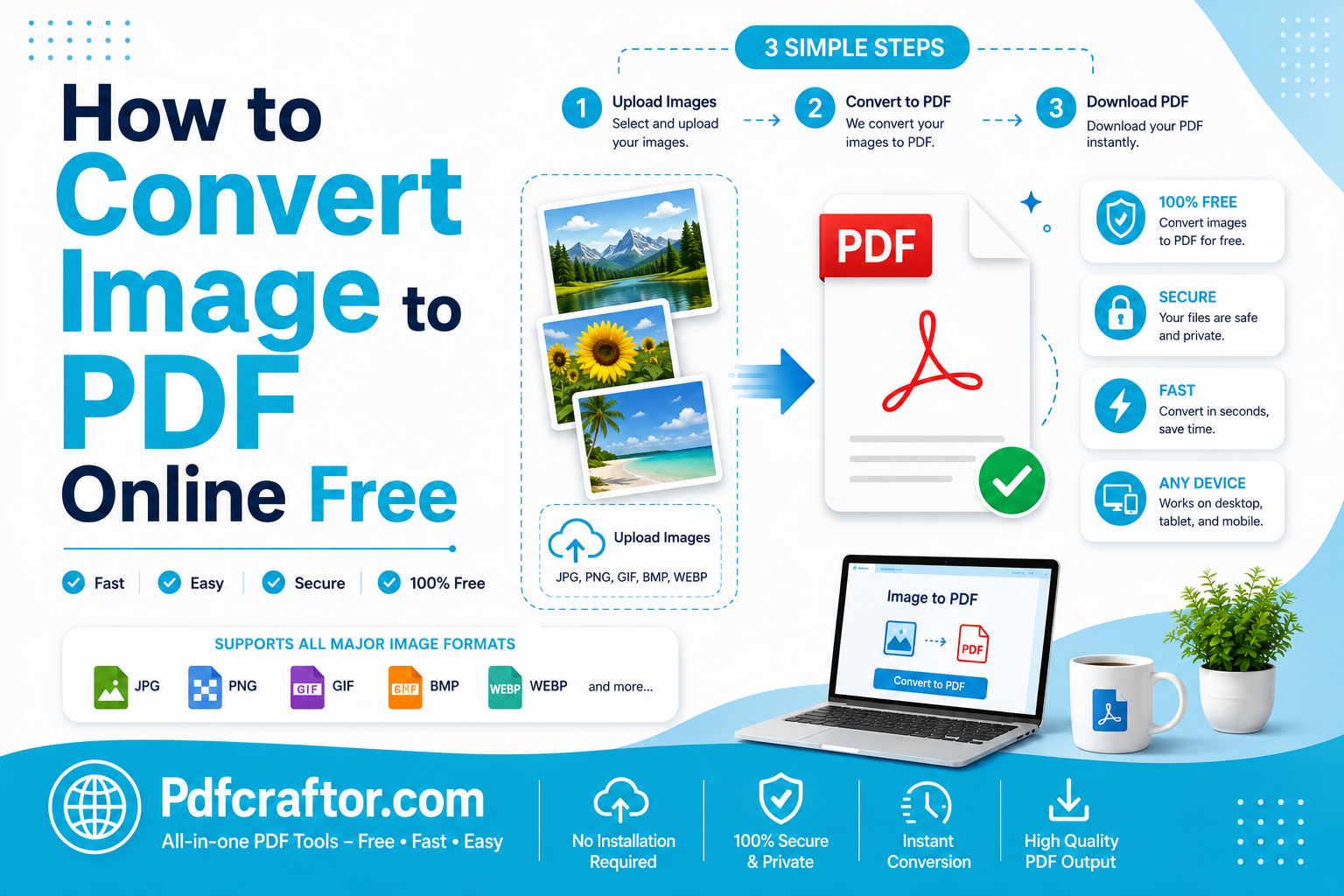
To convert an image to PDF online free, open a browser tool like PDFCraftor’s image to PDF converter, upload your JPG, PNG, or phone photos, arrange the page order, and click convert. You get one clean, multi-page PDF in seconds — no signup, no watermark, and no software install.
- Free tool: PDFCraftor image to PDF converter, browser-based, no registration
- Formats: JPG, PNG, HEIC, WebP, and BMP supported
- Output: One multi-page PDF with original resolution kept
- Privacy: Files auto-deleted within 24 hours, SSL encrypted upload
Almost everyone has a folder of images that really should be one document. Scanned receipts for a tax claim, photos of an ID, screenshots of a chat, or pages of handwritten notes — sending them as ten separate files looks messy and is easy to lose. The clean fix is to turn them into a single PDF.
This guide shows you how to use an image to PDF converter the simple way: the exact steps, how to keep quality sharp, how to set the page order, and how to edit the finished file if you spot a mistake. No design skills needed.
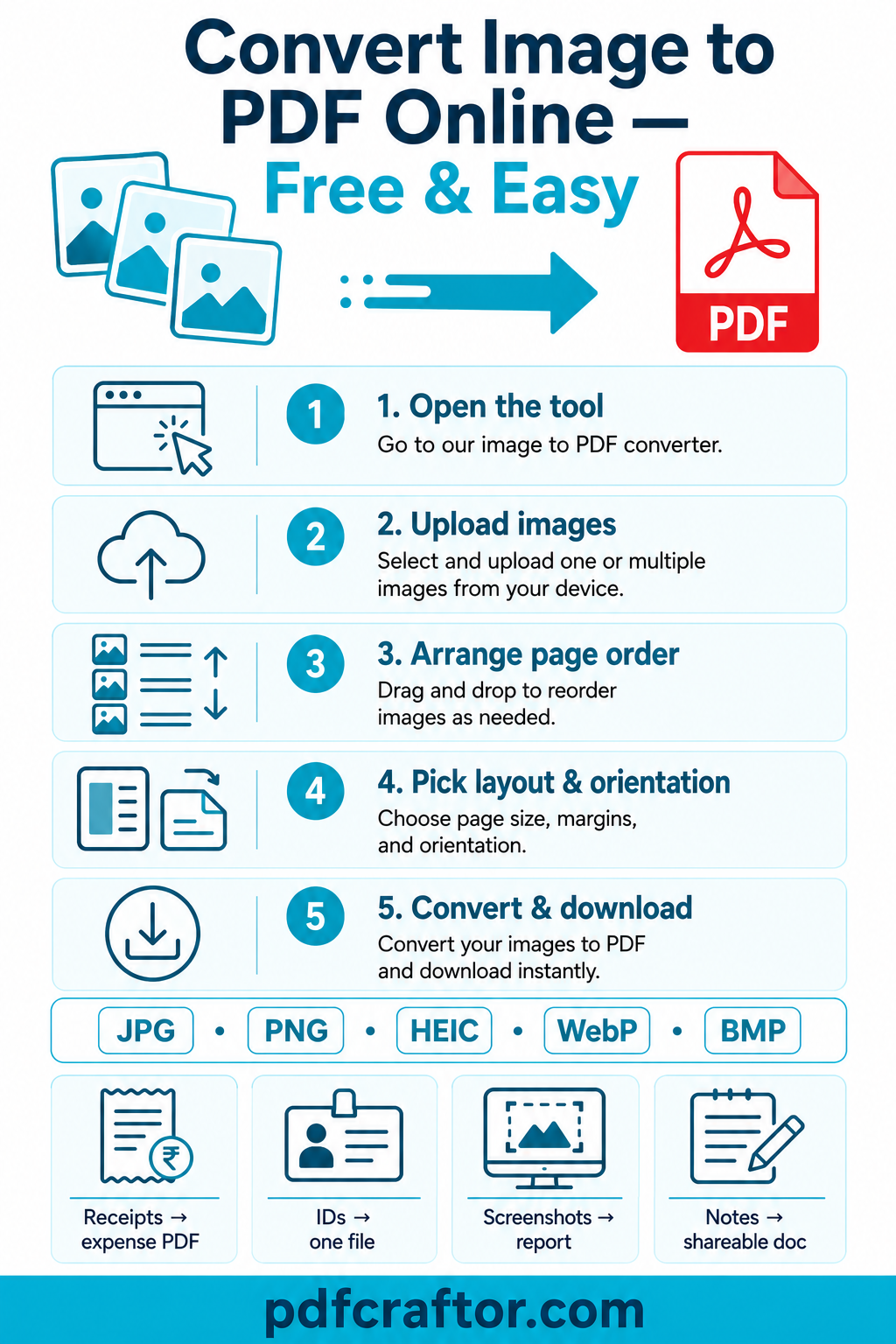
Infographic by pdfcraftor.com
Why Convert an Image to PDF?
Images are easy to capture but awkward to share in bulk. A PDF solves that. It locks your pages in the right order, opens the same way on every phone and computer, and stays as one tidy file instead of a scattered photo album.
Common reasons people convert image to PDF include:
- Submitting ID proofs or KYC documents as one combined file
- Turning scanned receipts into a single expense report
- Saving phone screenshots as a clean record
- Sending handwritten notes or whiteboard photos to a team
- Packaging product photos for a quote or catalog
How to Convert Image to PDF in 5 Steps
The whole process takes well under a minute on a normal connection.
Step 1: Open the image to PDF tool
Visit a free converter such as the PDFCraftor image to PDF converter in any browser. There is nothing to download or install.
Step 2: Upload your images
Drag your photos into the upload box or click to select them. You can add many images at once — JPG, PNG, HEIC, WebP, and BMP all work together in the same file.
Step 3: Arrange the page order
Drag the thumbnails to set the order you want. This is the step most people rush. Put the cover or first receipt at the top so the PDF reads correctly the moment someone opens it.
Step 4: Pick layout and orientation
Choose portrait or landscape, set the margins, and decide whether each image fills the page or sits centered. For mixed photo sizes, “fit to page” keeps everything aligned without stretching.
Step 5: Convert and download
Click Convert. The tool stitches your images into one PDF and gives you a download link. Open it to check that every page looks right before you send it.
Keep the Quality Sharp
The most common complaint after converting image to PDF is a blurry or oversized result. Both are easy to avoid.
If text in a photo looks soft, your source image is the problem, not the PDF. Re-shoot the page in good light, hold the camera straight, and keep the whole page in frame. For scans, 300 DPI is the sweet spot for crisp, readable output.
If the finished PDF is too large to email, run it through a compress PDF online tool. You can also shrink the source photos first with a compress image online tool, which keeps the layout sharp while cutting the file size.
Image to PDF vs JPG to PDF: Are They Different?
People search both image to PDF and jpg to pdf, but they usually mean the same task. The only difference is the source format. A good converter treats them all the same and lets you mix formats in one file.
| Source Format | Best For | Notes |
|---|---|---|
| JPG | Camera photos, receipts | Small size, ideal for scans |
| PNG | Screenshots, graphics | Sharp edges, larger files |
| HEIC | iPhone photos | Auto-converted on upload |
| WebP | Web images | Modern, compact format |
How to Edit the PDF After Converting
Sometimes you finish the file and then spot a problem — a page is upside down, one image is in the wrong spot, or you need to add a title. You do not have to start over. Use an online edit PDF files tool to fix it directly.
With a quick PDF editor you can:
- Rotate a page that scanned sideways
- Add a heading, date, or note on top of an image
- Delete a duplicate or blurry page
- Reorder pages without re-uploading every photo
If you need to combine your new PDF with another document, a merge PDF online tool joins them into one file in seconds.
Convert Image to PDF on Phone vs Desktop
Because the tool runs in a browser, the steps are the same on every device — but the small habits differ. Knowing which one you are on saves time.
On a phone, your images are usually fresh camera shots or screenshots, often in HEIC. Upload straight from the gallery, and the converter handles the format change for you. The one thing to watch is orientation: photos taken sideways sometimes carry hidden rotation data, so preview before you download and rotate any page that lands the wrong way.
On a desktop, you are more likely working with saved files, scans, and PNG screenshots spread across folders. Here the advantage is the drag-and-drop reorder — it is far easier to line up twenty pages with a mouse than with a thumb. If your scans came in slightly different sizes, set a single page size for the whole PDF so the document feels consistent instead of jumping between dimensions.
In both cases the output is identical: one shareable PDF that opens the same way for whoever receives it.
Real Situations Where This Saves You
An image to PDF converter sounds technical, but the everyday wins are simple. A few examples show why people reach for it again and again.
- Expense claims: snap each receipt, drop them all in, and submit one PDF instead of fifteen loose photos your accounts team has to chase.
- Job and visa applications: combine your ID, certificates, and proofs into a single file that meets a “one PDF only” upload rule.
- Study notes: photograph whiteboard or textbook pages and turn them into a tidy PDF you can read back in order on any device.
- Property and rentals: bundle room photos with a cover note so a landlord or buyer sees everything in one scroll.
- Freelance proofs: package design mockups or product shots into a clean PDF for a client quote.
In each case the value is the same: order, privacy, and a single file that will not get split up or lost in a long email thread.
Compare Common Image to PDF Tools
Most free converters handle the basic job, but small features change how smooth the experience feels.
| Tool | Mixed Formats | Signup | Watermark |
|---|---|---|---|
| PDFCraftor | Yes | Not required | None |
| Smallpdf | Yes | Optional | None on basic plan |
| iLovePDF | Yes | Optional | None |
| Adobe Online | Limited | Required | None |
Common Mistakes to Avoid
The conversion is simple, but the output suffers when small details are skipped. Do not upload photos in the wrong order and assume the tool will guess your intent. Do not stretch a small image to fill a full page — use “fit to page” instead. Avoid converting screenshots full of personal data without checking the privacy of the tool. And do not skip the final preview; a 30-second review saves a re-send.
Privacy and File Safety Tips
Images often carry sensitive details — ID numbers, addresses, and signatures. Before you upload:
- Check that the tool uses HTTPS (look for the lock icon)
- Confirm files are deleted automatically — PDFCraftor removes them within 24 hours
- Crop out anything you do not want to share before converting
- Avoid uploading sensitive files on public Wi-Fi
Suggested Internal Links
| Anchor Text | URL |
|---|---|
| Image to PDF converter | https://pdfcraftor.com/convert-image-to-pdf/ |
| Online edit PDF files | https://pdfcraftor.com/edit-pdf-online/ |
| Merge PDF online | https://pdfcraftor.com/merge-pdf-online/ |
| Compress PDF online | https://pdfcraftor.com/compress-pdf-online/ |
| Compress image online | https://pdfcraftor.com/compress-image-online/ |
| PDFCraftor | https://pdfcraftor.com/ |
FAQ
Is it safe to use a free image to PDF converter?
Yes, if the tool uses HTTPS and deletes files automatically. PDFCraftor encrypts uploads with SSL and removes files within 24 hours, so your images are not stored.
Can I combine many images into one PDF?
Yes. Upload all your photos at once, drag them into the order you want, and the converter merges them into a single multi-page PDF.
Will converting reduce my image quality?
No. A good image to PDF tool keeps the original resolution. If the file feels too large, compress the PDF afterward rather than lowering the source quality first.
Can I convert iPhone HEIC photos to PDF?
Yes. HEIC images are converted automatically on upload, so you can mix them with JPG and PNG files in the same PDF.
How do I fix a page after converting?
Use an online edit PDF files tool to rotate, delete, reorder, or annotate pages without redoing the whole conversion.
Conclusion
You can convert image to PDF online free in under a minute when you use the right tool. Upload your photos, set the page order, keep the resolution sharp, and review the file before sending. If something needs fixing, an online edit PDF files tool handles it without a restart. With PDFCraftor’s image to PDF converter and its small toolkit around it, turning a messy photo folder into one clean document is a single, simple workflow.
Share this article
Sharad Mishra
Content Writer
Published on June 14, 2026
Related Articles
5 PDF Editor Tools That Are Better Than Adobe (For What Most People Actually Do)
Adobe Acrobat Pro costs around $240 a year. These 5 free PDF editor tools merge, split, compress and edit PDFs without the price, the account, or the bloat.
How to Convert PDF to Excel Free (and Extract Tables Without Retyping)
Learn how to convert PDF to Excel free and extract tables into editable spreadsheets, no manual retyping, no software. Works for bank statements and reports.
How to Add a Watermark to a PDF Free (Text or Logo)
Learn how to add a watermark to a PDF free stamp text like "Confidential" or your logo across pages, set opacity and position, online with no software.